Organization skills
Organization skills let your team maintain one shared set of workflows, such as brand guidelines, clinical or legal wording rules, accessibility checks, or API conventions, and use them in every project in your organization without copying files between projects.
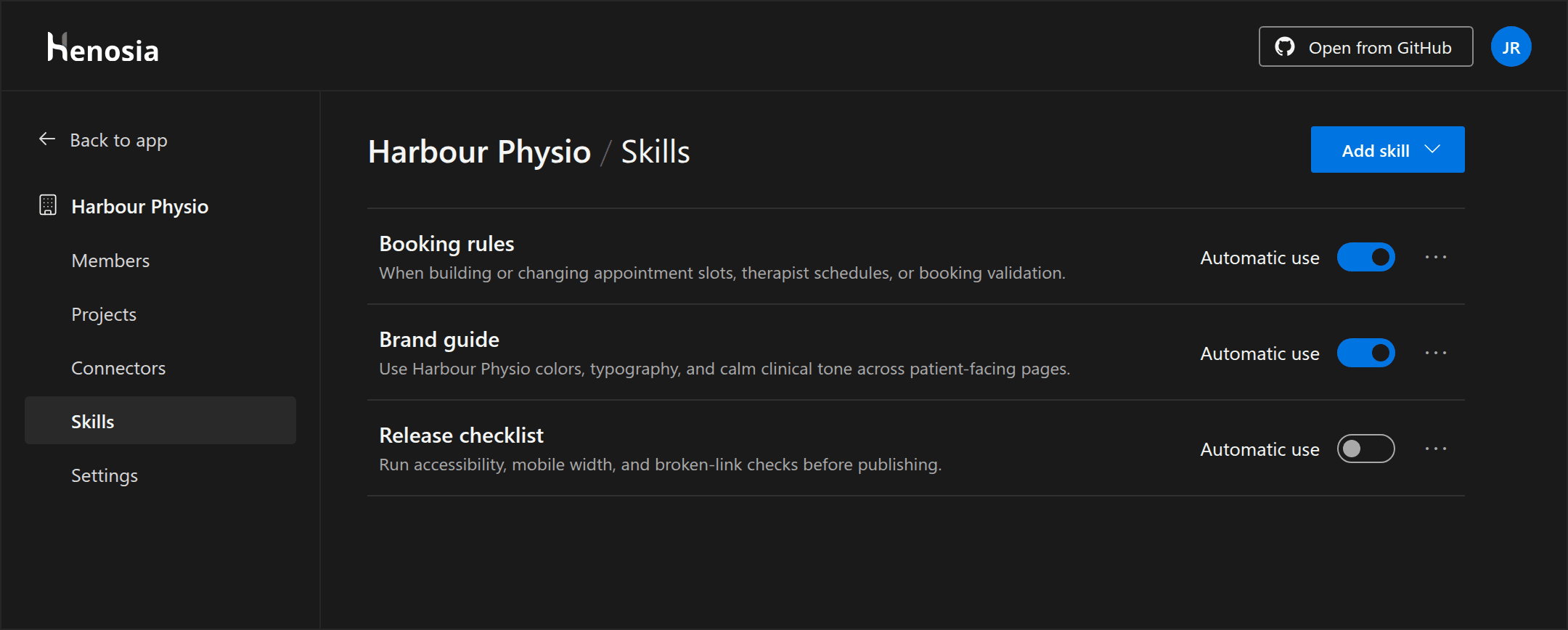
Once added, organization skills appear automatically under your organization's name in the builder's Skills panel and in the / menu of every project in the organization.
Open organization skills
From the Henosia dashboard, choose Organizations in the left sidebar, select your organization, and choose Skills.
Permissions
- All organization members can view the Skills page, open any skill to read its instructions and supporting files, and use organization skills in projects.
- Organization owners and admins can add, edit, update, and delete organization skills, change Automatic use, and share skills from a project to the organization.
Add skills to your organization
Organization owners and admins can choose Add skill in the top right of the Skills page to add skills in three ways.
Import from GitHub
Choose Add skill, then Import from GitHub. Paste a link to a public GitHub repository (owner/repo or full URL), a folder inside a repository, or a SKILL.md file.
Henosia scans the repository and previews the skills it finds:
- If you linked to a specific skill folder or
SKILL.md, Henosia highlights and selects that skill at the top and lists any other skills in the repository underneath. - Use the checkboxes (or Select all and Clear) to choose which skills to import.
- If a skill matches the name of one already in your organization, a Replaces … badge shows that importing it will update the existing skill.
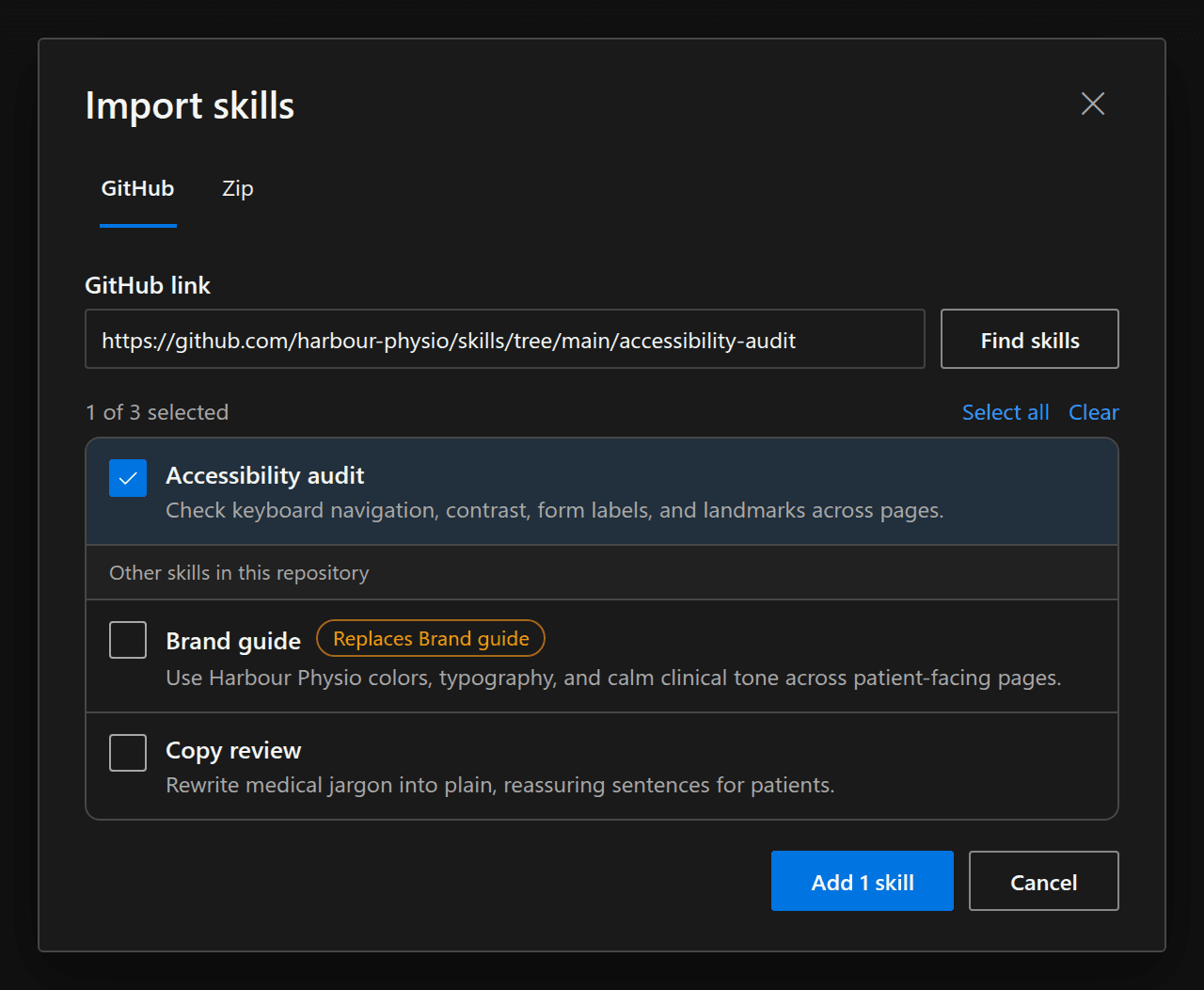
Choose Add skill (or Replace skill) to finish importing.
For a private GitHub repository, download the skill folder as a .zip archive and use Upload a zip instead.
Upload a zip
Choose Add skill, then Upload a zip (or switch to the Zip tab in Import skills). Drop a .zip or .skill file up to 10 MB, or click to choose one from your computer.
An archive can contain a single skill or several skill folders, each with its own SKILL.md and any supporting files or templates. Select the skills you want to import and choose Add skill.
Write a skill
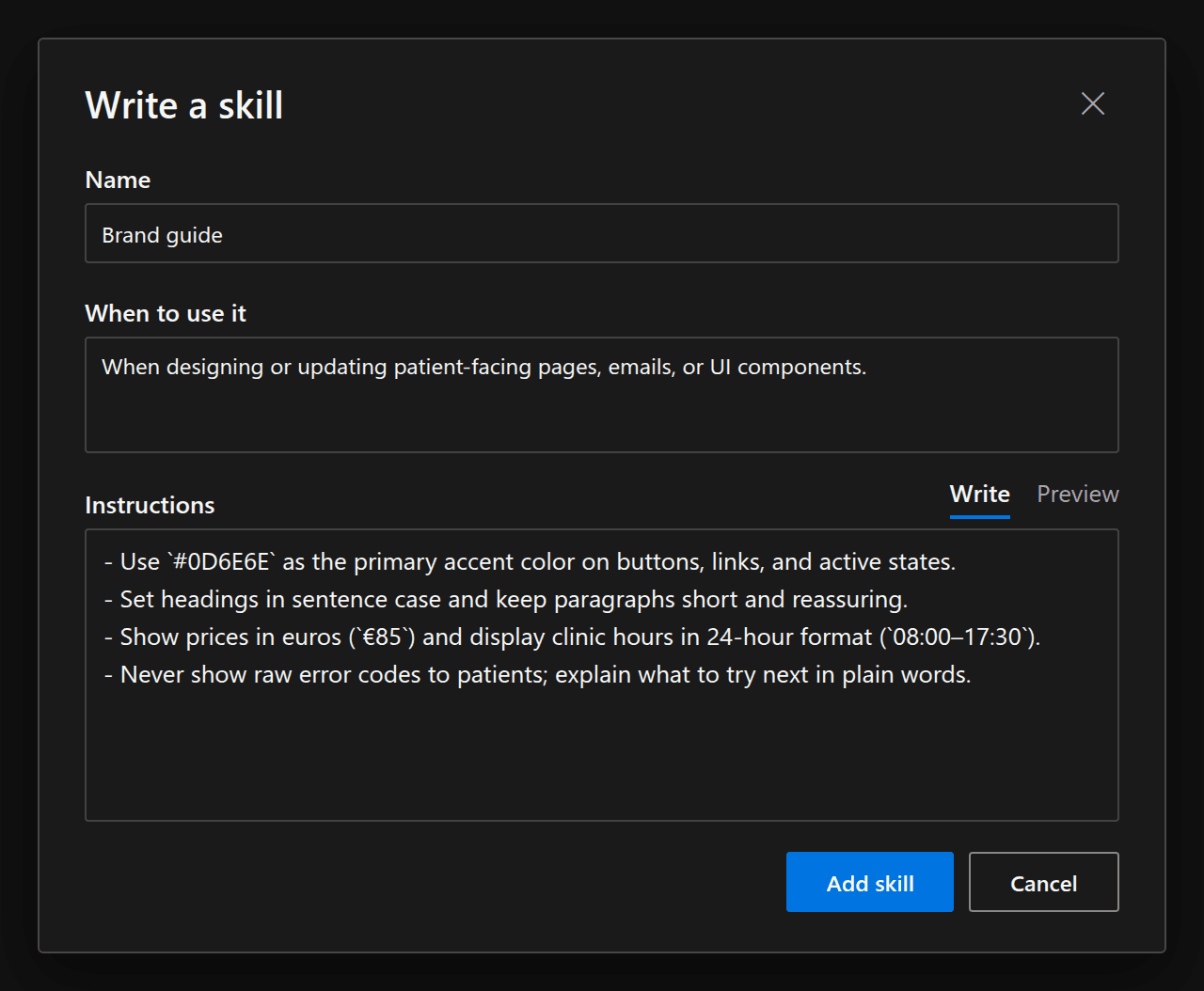
Choose Add skill, then Write a skill to write a skill directly in Henosia:
- Name: a clear title such as
Brand guide. - When to use it: when Henosia should apply the skill, so it knows which tasks fit.
- Instructions: the rules or steps in Markdown. Switch between Write and Preview to check formatting before saving.
Share a skill from a project
Often the easiest way to build an organization skill is to create and refine it in a single project with /Create skill, then share it once it works the way your team wants.
In the builder, open Skills in the left toolbar, open the project skill (or hover it in the list), choose More options (⋯), and choose Share with <your organization> (for example, Share with Harbour Physio).
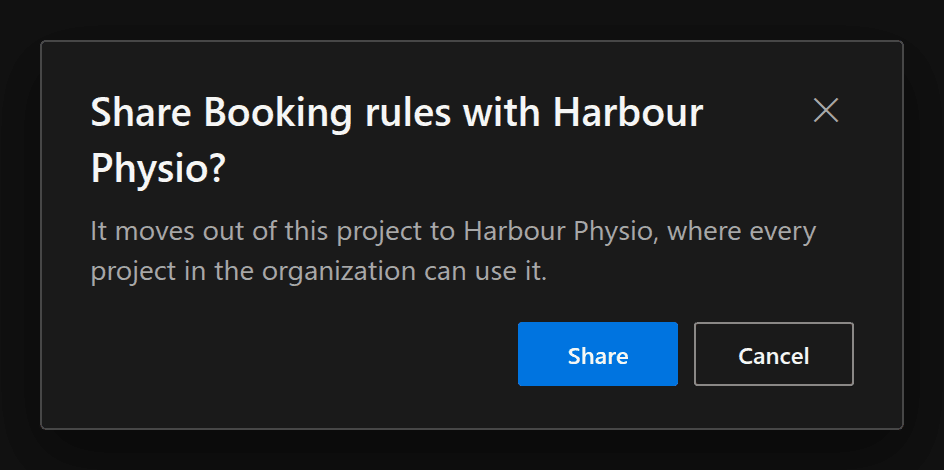
Sharing moves the skill, including any supporting files in its folder, out of that project and into your organization, so every project uses the same shared version. If your organization already has a skill with that name, Henosia warns you before replacing it.
Manage organization skills
Choose any skill on your organization's Skills page to open its detail panel, see where it came from (GitHub repository, zip, written in Henosia, or shared from a project), and read its files and instructions.
Organization owners and admins can manage each skill from the list or its detail panel:
- Automatic use: When Automatic use is on, Henosia uses the skill automatically whenever a request in an organization project fits. Turn Automatic use off for checklists or specialized workflows that people should invoke deliberately with
/in chat. - Edit: Open the skill and choose Edit to update When to use it and Instructions. Any extra files in the skill folder, its source link, and its Automatic use setting stay unchanged.
- Update from GitHub: For skills imported from GitHub, open More options (
⋯) and choose Update from GitHub. Henosia fetches the latest version from the linked repository so you can preview and replace the skill while keeping your organization's Automatic use setting. - Delete: Open More options (
⋯) and choose Delete. Once confirmed, Henosia stops using the skill across every project in the organization.
Override an organization skill in one project
If a specific project needs different rules than the rest of your organization, create a project skill with the same name in .agents/skills/<skill-name>/SKILL.md (or ask Henosia to create one in chat).
In that project, Henosia uses the project skill instead of the organization skill and notes Used instead of the … skill with the same name in the Skills panel. Every other project in your organization continues using the shared organization skill.
Limits
| Limit | Value |
|---|---|
| Skills per organization | Up to 100 skills (100 MB total) |
| Size per skill | Up to 200 files and 10 MB total |
| Individual file sizes | Up to 256 KB for SKILL.md, 1 MB per supporting file |
| Zip upload / GitHub download | Up to 10 MB compressed (50 MB expanded) |
| Automatic skills per turn | Up to 50 skills with Automatic use on (skills added with / in chat always work) |