Skills
A skill is a reusable set of instructions or steps for a particular kind of work, such as your brand guide, booking validation rules, or a release checklist. Henosia supports the open Agent Skills format.
Unlike AGENTS.md, which Henosia reads in every task, a skill is loaded only when a request needs it or when you add it to a message with /.
Use a skill in chat
Skills can run in two ways:
- Automatically: When Automatic use is on, Henosia checks each skill's description and loads the ones that fit your request.
- With
/in your message: Type/in the builder's prompt field to open the skills menu, type a few letters to filter by name, and choose a skill to add it to your message. You can add up to 8 skills to a single message, including skills with Automatic use turned off.
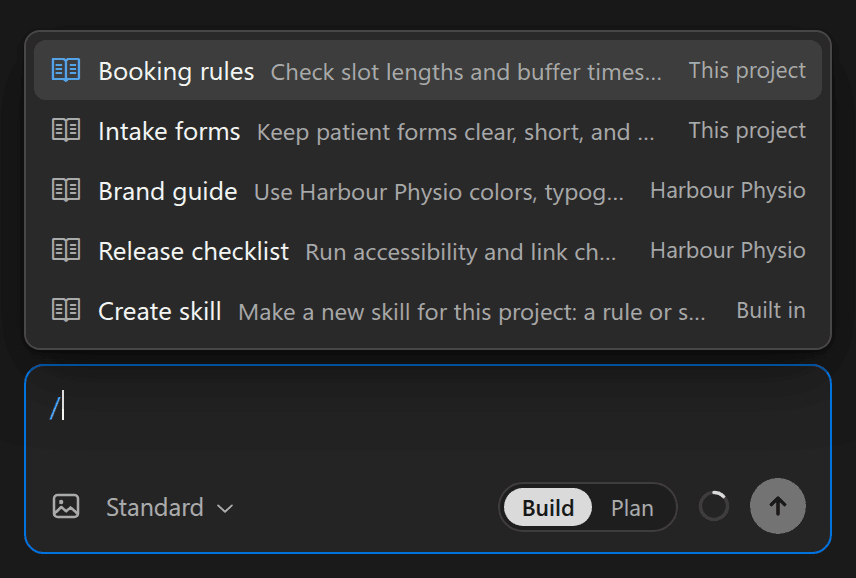
Skills you pick appear as clickable references in your message. Hover a reference to see where the skill comes from and what it does, or choose it to open the skill in the Skills panel.
Whenever Henosia loads skills during a turn, whether you picked them with / or Henosia chose them automatically, the chat shows a Henosia used … line above its reply.
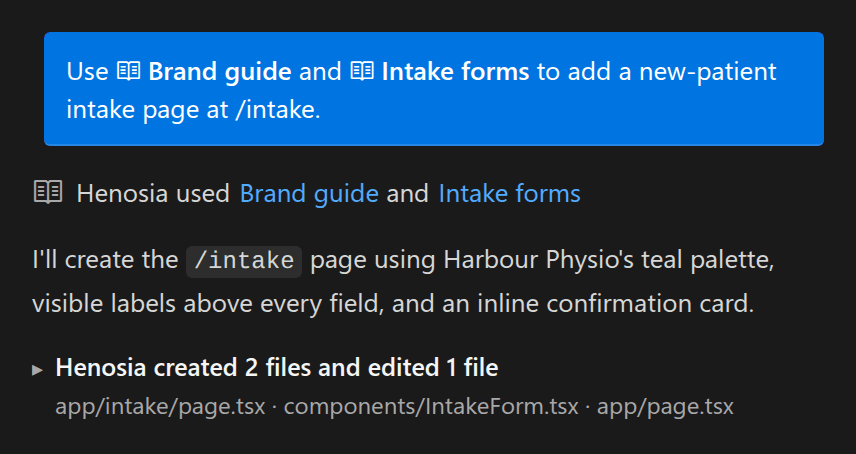
Create a skill
You don't need to write skill files by hand. Type /Create skill in the prompt field (or open Skills in the left toolbar and choose New skill), describe the rule or workflow you want Henosia to remember, and send your message:
/Create skill Check that every patient form has visible labels above each field, clear error messages in plain words, and full keyboard navigation.
Henosia helps you name the skill, choose whether it should run automatically or only when you add it with /, and save it to .agents/skills in your project. If you're in Plan, Henosia previews the skill first and saves it when you choose Build this plan.
Browse and manage skills in the builder
Choose Skills (the book icon) in the left toolbar of the builder to see every skill available in the project, grouped by source:
- In this project: skills stored in this project's
.agents/skillsfolder. - Connectors: skills provided by connected tools in the project, when available.
- Your organization (shown under your organization's name, such as Harbour Physio): skills shared across every project in your organization. See Organization skills.
- Built in: skills included with Henosia, such as Create skill.
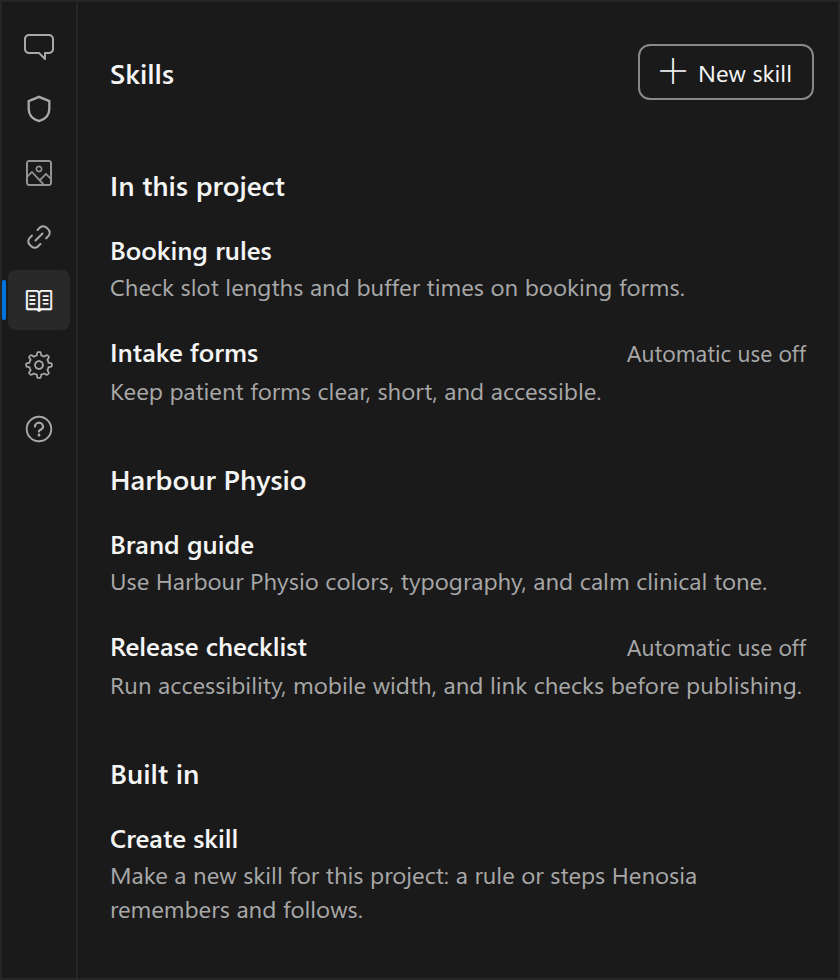
Choose any skill to open its details and read When to use it, Automatic use, Instructions, and any extra files in its folder.
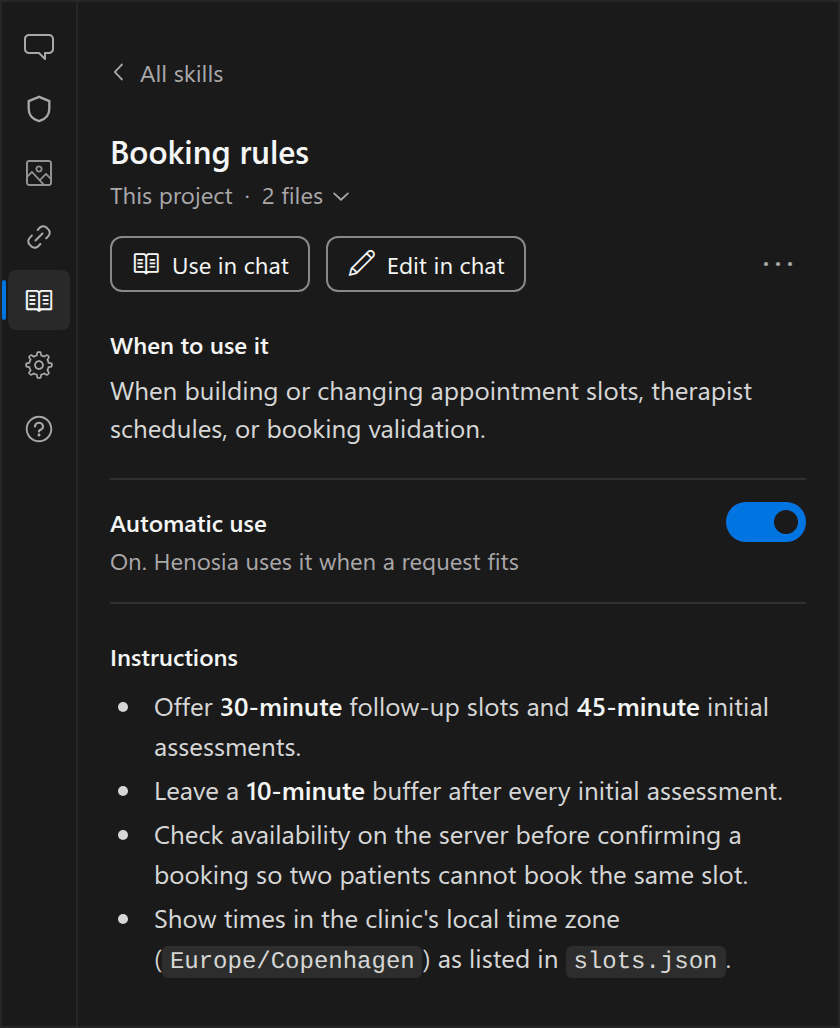
From a skill's detail view, you can:
- Use in chat: insert the skill into your prompt field so you can send a message with it right away.
- Edit in chat (project skills): pre-fill a prompt (
Change the … skill so that) so you can ask Henosia to revise the skill. If you already started typing a message in the prompt field, Henosia sets your draft aside. Choose Back to your message above the prompt field to switch back without losing it. - Automatic use: turn this on so Henosia uses the skill whenever a request fits, or turn it off so the skill runs only when you add it with
/. For organization skills, Automatic use is managed in organization settings. - More options (
⋯) (project skills): choose Delete to remove the skill from your project. If you're an organization owner or admin, you can also choose Share with your organization (for example, Share with Harbour Physio) to move the skill to your organization so every project can use it.
How skill files work
Project skills live with your code inside .agents/skills, with one folder per skill and a SKILL.md file inside it:
Because project skills are part of your repository, everyone on the project gets them, checkpoints include them, and GitHub sync keeps them alongside your code.
A SKILL.md file starts with YAML frontmatter for name and description, followed by Markdown instructions:
name: lowercase letters, numbers, and single hyphens (up to 64 characters). Henosia displays it as a readable title such as Booking rules.description: what the skill does and when to apply it (up to 1,024 characters). Henosia reads this description to decide when a skill fits a task.disable-model-invocation: true(optional): turns Automatic use off so the skill runs only when someone adds it to a message with/.
When two skills have the same name
If two sources provide a skill with the same name, Henosia uses the one closest to your project:
- In this project (
.agents/skills) - Connectors
- Your organization
- Built in
When a project skill overrides an organization or built-in skill of the same name, the Skills panel notes this under the skill's title.