Environment settings and secrets
Open Environment settings (the gear icon in the builder's left toolbar) when your app needs an API key or configuration variable, when you want to manage Henosia Auth sign-in access, or when you need to reinstall project packages.
Keep secrets out of chat and code
Put API keys, tokens, and webhook secrets in Environment settings under Environment variables. Never paste them into chat, write them into code or AGENTS.md, or upload them to Assets.
Chat messages remain in the project's task history, where collaborators can read them. Code, AGENTS.md, and project assets are tracked with your project files (including GitHub sync when connected), and public assets are reachable on the web.
Variables in Environment variables are saved to .env.local in your project workspace:
.env.localis ignored by Git (.gitignore), excluded from project checkpoints, and skipped by Henosia's search tools.- Henosia is instructed never to ask for secret values in chat and never to read, print, or repeat values from
.env.local. - Values in the Environment variables editor appear as plain text in the builder, so anyone with editor access to the project (including organization owners and admins) can view and change them.
Add or edit environment variables
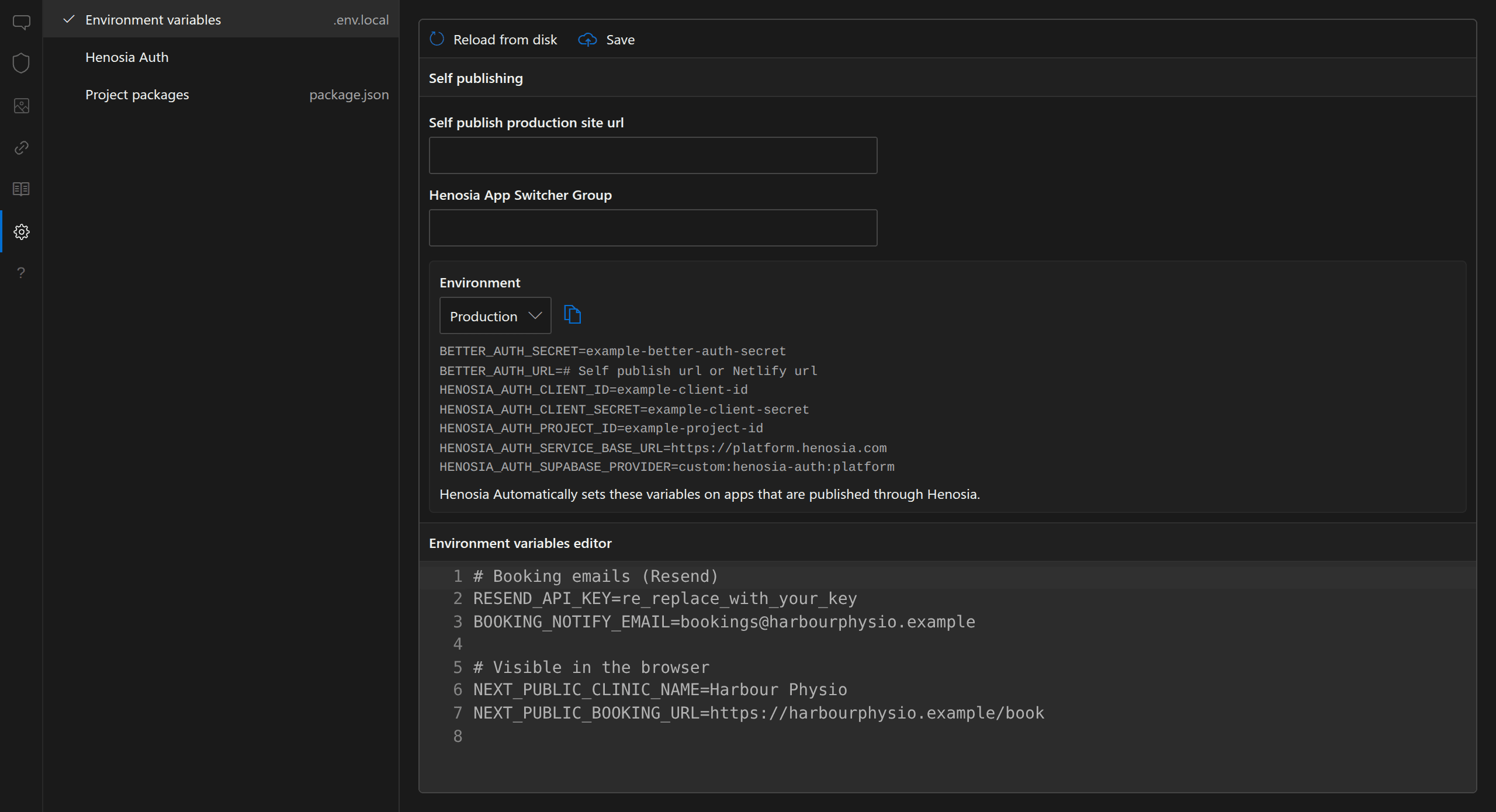
- Choose Environment settings (the gear icon) in the builder's left toolbar, then choose Environment variables (
.env.local). - Scroll to Environment variables editor and enter one
NAME=valuepair per line. Lines starting with#are comments. - Choose Save at the top of the pane (or press
Ctrl+S, orCmd+Son a Mac, inside the editor). If you switch to another tab or panel with unsaved edits in the editor, Henosia saves them and refreshes the preview. - Tell Henosia in chat which variable name to read, without pasting the secret value:
When .env.local changes on disk outside the editor, for example right after connecting Supabase, the editor loads the new file by itself unless you have unsaved edits. To discard your unsaved edits and load the latest file, choose Reload from disk at the top of the pane.
Server secrets vs browser variables
In Henosia's Next.js projects, the variable name controls whether visitors' browsers can read its value:
- Names without
NEXT_PUBLIC_(such asRESEND_API_KEYorSTRIPE_SECRET_KEY) stay on the server. Only server-side code, such as API routes, Server Actions, and Server Components, can read them. Use plain names like these for every secret. - Names starting with
NEXT_PUBLIC_(such asNEXT_PUBLIC_CLINIC_NAMEorNEXT_PUBLIC_SUPABASE_URL) are sent to the browser so client-side page code can read them. Anyone visiting your app can inspectNEXT_PUBLIC_values in their browser, so never put a secret key in aNEXT_PUBLIC_variable.
Preview and published apps
In the builder, saving .env.local reloads your running preview right away. You don't need to restart the project server.
When you publish through Henosia, Henosia imports your .env.local variables into the published app's environment during deployment.
If you add or edit an environment variable after your app is already live, publish the app again so the published site picks up the new value. Publishing adds and updates variables on the published site but does not remove them, so a variable you delete from .env.local keeps its last published value there. To stop your app from using it, ask Henosia to remove it from the code and publish again.
Self publishing
At the top of Environment variables, the Self publishing section shows settings for Henosia Auth and the App Switcher:
- Self publish production site url: the
https://address where you host the app yourself, if you deploy outside Henosia. - Henosia App Switcher Group: an optional group name for organizing related apps in the App Switcher.
- Environment: switch between Production and Preview & Local development to view and copy the
BETTER_AUTH_*andHENOSIA_AUTH_*variables for that environment.
When you publish through Henosia, Henosia sets these variables on your published app automatically, so you don't need to copy them into Environment variables editor.
Other tabs in Environment settings
Henosia Auth
Choose Henosia Auth to control who can sign in to your published app: all organization members or selected members, external guests and guest companies, and allowed network addresses or IP ranges. Changes on this tab save immediately. See Henosia Auth for details on each setting.
If your project does not use Henosia Auth, this tab notes Henosia Auth is currently not installed in this project.
Project packages
Henosia installs npm packages automatically when it adds dependencies while building. If you edited package.json yourself or dependencies get out of sync, open Project packages (package.json) and choose Install packages in package.json. Henosia detects the package manager from your project's lockfile.