Prompting guide
Henosia already knows how to build software. Spend your prompt on what only you know: who uses the tool, what data it holds, what rules your team follows, and what good looks like.
How Henosia works with you
Before Henosia changes anything, it reads your project's pages, components, and conventions so new work matches what is already there. It carries multi-step work through from start to finish, checks the files it writes, reads your app's logs, looks at the preview, and replies in whatever language you write in.
It also handles safety defaults without being reminded. It keeps Supabase Row Level Security enabled, asks for API keys through a key card rather than as a chat message, and reviews actions that reach outside your project: routine reads and task-scoped writes go ahead, while unrequested high-risk actions (such as deleting live data or posting to an external channel you didn't name) pause for your approval. You don't need to prompt Henosia to act like a designer or an engineer, or remind it to be careful with your database.
Tell Henosia what it can't see
Henosia can read the files in your project (except any excluded in .henosiaignore), and nothing that lives only in your head or your team's habits. Before you send a prompt, picture handing it to a new colleague on their first day: if they would have to guess who the page is for or what a button should do, Henosia will have to guess too.
Four details change the first build more than anything else:
- Who uses it: the roles involved (for example, warehouse staff and team leads) and how they use it (a phone on the shop floor or a wide monitor at a desk).
- What data it holds: the fields, statuses, and numbers that matter, and where they come from today.
- The rules: who approves what, which rows each role is allowed to see, and what happens when something is late or rejected.
- What done looks like: the pages, actions, or checks that have to work when Henosia finishes.
| Instead of | Try |
|---|---|
| "Make a holiday request app." | "Build a holiday request tool for our 40-person warehouse team. Staff request days off, their team lead approves or rejects, and everyone sees a shared calendar. Team leads only see their own team." |
| "Add a shift handoff page." | "Add a shift handoff log for our day, evening, and night shifts. Outgoing leads record open equipment issues, delayed shipments, and safety notes before ending their shift. Incoming leads mark each open item acknowledged at the start of the next shift." |
| "Use the logged-in user's name." | "Replace the placeholder name 'John' in the top bar and account menu with the signed-in user's full name, falling back to their email address when no name is set." |
When you leave your team's rules out, Henosia doesn't know to ask about them: it fills in sensible defaults that are wrong for your team. When we ran "Make a holiday request app" three times in Plan, Henosia asked no questions and invented company-wide Employee, Approver, and Admin roles in all three plans - and in at least two of them, approvers could see every request across the company. Across three runs of the 40-person warehouse prompt above, every plan restricted team leads to viewing and approving requests from their own team only.
Plan first, and let Henosia interview you
Use Plan whenever you start something new or touch several parts of your app. In the builder, opening a project with no active task or choosing New task always starts in Plan. On the dashboard, the prompt field starts in Plan by default, remembers whichever mode (Plan or Build) you used last in that browser, and switches to (and remembers) Build when you pick an idea from Build inspiration.
In Plan, Henosia reads your code, checks the preview, and inspects a connected Supabase database read-only, without editing your project files.
When a decision blocks the plan - such as who may see records or how an approval should work - Henosia asks you in a short form. Choose one of the options, use Type your own answer, or reply in chat. When Henosia asks several questions at once, step through them and choose Submit answers on the review step.
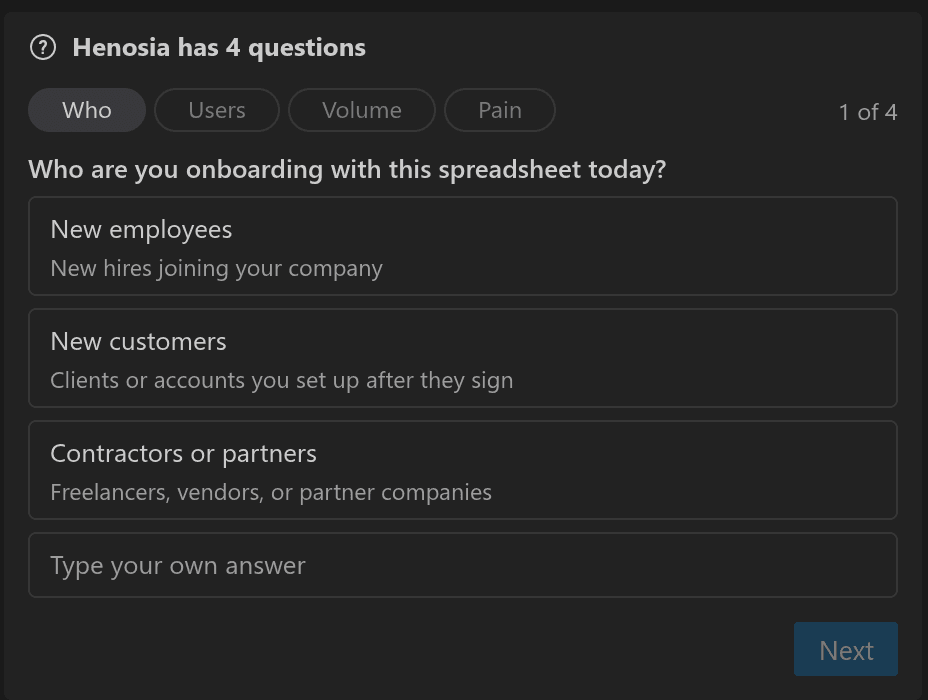
On a short prompt like "I want to replace our onboarding spreadsheet with an app", Henosia asks three or four questions on its own before proposing a plan. When you haven't worked the details out yet, ask Henosia to interview you for a much deeper pass first:
In three runs on Henosia's agent, that prompt produced eight to twelve questions across two or three forms - covering who owns each task, what managers can see, due dates, reminders, and existing data - before writing the plan.
Once Henosia writes a plan, reply with any changes you want; Henosia rewrites the full updated plan so everything stays in one place. When the plan looks right, choose Build this plan to switch to Build and build what you agreed on. For a small, clear change on an existing page, switch the toggle to Build directly.
Give it the real thing, not a description
When you already have a mockup, a spreadsheet export, a policy document, or an error message, hand it directly to Henosia instead of describing it in your own words:
- Screenshots and mockups: Choose Attach images (or paste from your clipboard) to attach up to 20 images per message, within the per-message size limit (large images are resized automatically). Tell Henosia what to take from each image - for example, the layout from a wireframe or the colors from an existing internal tool. Crop very tall or wide full-page screenshots to the section you care about so small text stays readable and isn't rejected. Attached images are only for the chat; to show an image such as a company logo inside your app, upload it under Public assets in Assets instead.
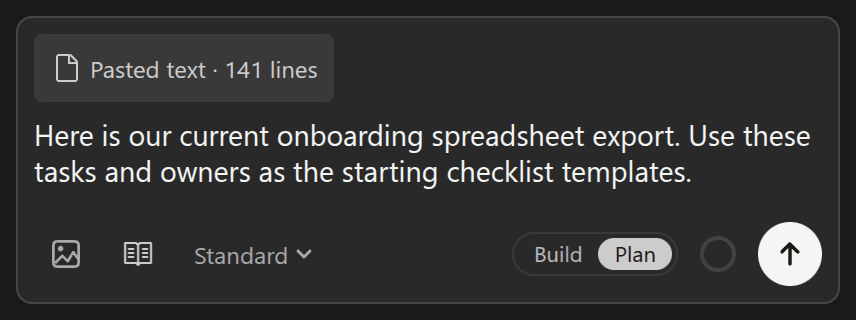
- Long text and spreadsheet rows: Paste requirements, email threads, logs, or copied spreadsheet cells straight into the prompt field. Any paste over 10,000 characters becomes a
Pasted textchip (up to 1,000,000 pasted characters per message) and is passed to Henosia as a read-only file so your prompt stays easy to read. - Requirements and sample data: Open Assets in the left toolbar and upload specs, CSVs, or mock data under Private assets (the default tab; up to 25 MB per upload, and up to 4 MB per image). Files in Private assets are stored in
private-assets/for Henosia to read while building and aren't served publicly when you publish, unless you build a page that displays their contents. Point Henosia at the file by name in your prompt (for example,new-hires-december.csv), or choose Copy asset description on the file and paste it into chat. - API keys and secrets: Never paste API keys, tokens, or passwords into the chat or upload them to Assets. Add them in Environment settings (the gear in the left toolbar), or enter them in the key card when Henosia requests one.
Say how far to go
Henosia aims to deliver at the scope you intended rather than stopping at a half-built sketch. When your prompt leaves the boundaries open, it has to guess whether you want a complete workflow with surrounding states or a quick edit to one element.
Spell out the scope when you want the full version:
When you want a narrow edit on an existing page, state the boundary just as clearly:
Give design direction it can act on
Without visual direction, AI models fall back on familiar layout habits, and broad instructions like "make it look modern" or "avoid a generic AI look" mostly swap one default style for another.
Give concrete direction that Henosia can check against the page: name the kind of tool it should feel like, give exact hex color codes or a reference screenshot, and name the specific patterns to leave out.
| Instead of | Try |
|---|---|
| "Make it look modern, and avoid a generic AI look." | "Make this stock page look better. Use our brand blue #1F4E79 for accents. Keep it calm and dense like a spreadsheet: no hero images, no gradients, no rounded pill buttons, no big shadows, no emoji." |
| "Clean up the dashboard layout." | "Put the four weekly totals in a single compact row above the orders table, remove the decorative icons from the cards, and right-align all DKK amounts so the digits line up." |
Here is what three runs of each prompt did to the same six-item warehouse stock table:
"Make it look modern."produced a clean, polished dashboard - and a generic one. All three runs added frosted-glass blur across five to six edited files, two of the three restyled the sign-in page with gradients and heavy shadows nobody asked for, and the run shown below added large summary cards and pill badges."Make it look modern, and avoid a generic AI look."swapped in a different stock look across seven to ten files: all three runs added hero-sized headings, two of the three added gradients to the sign-in page, and the run shown below brought in a warm background, custom fonts, and an uppercase eyebrow line.- Naming
#1F4E79, a dense spreadsheet table, and the five patterns to skip kept the items in a compact table, added none of those patterns, and touched only two to three files in all three runs.
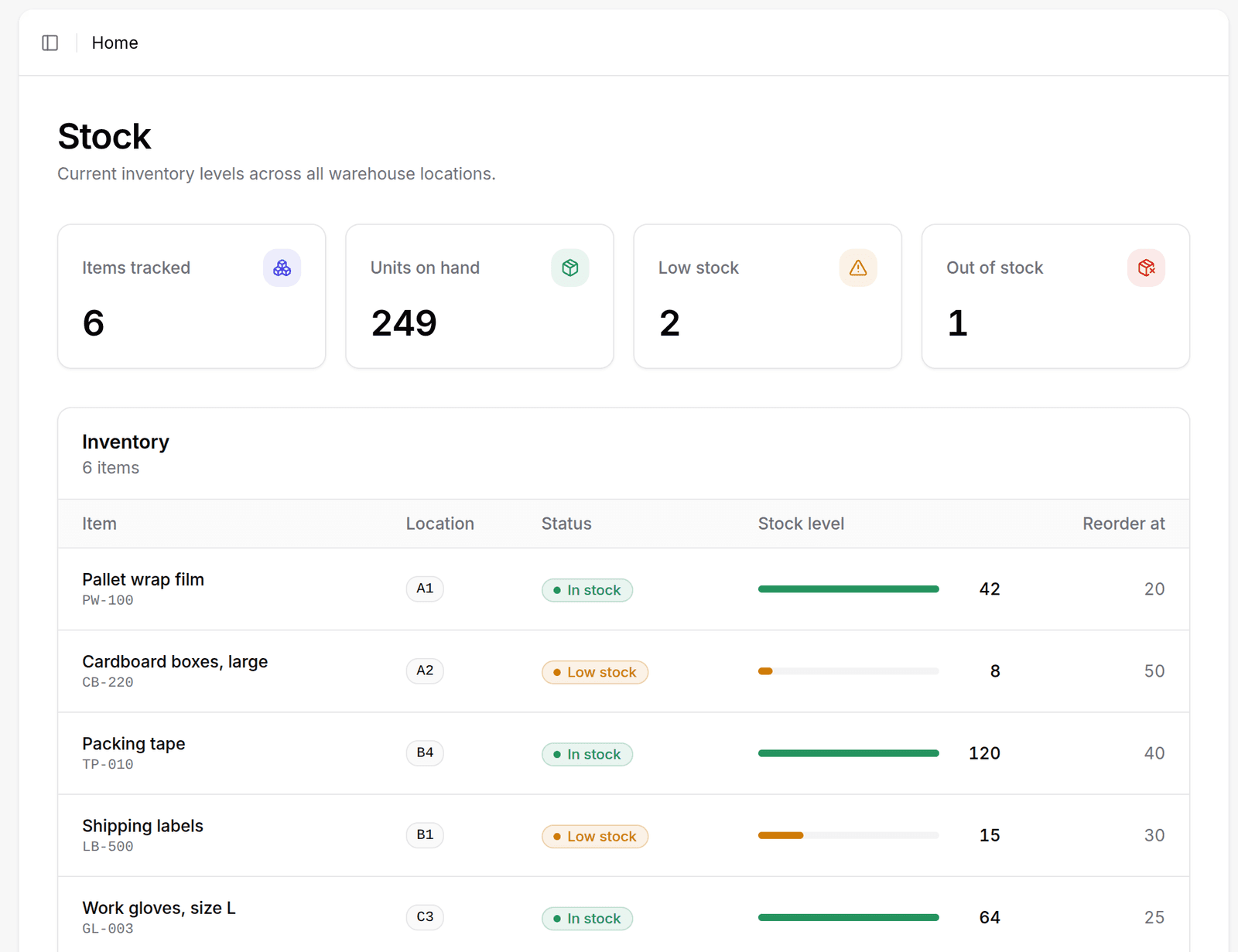
"Make it look modern."
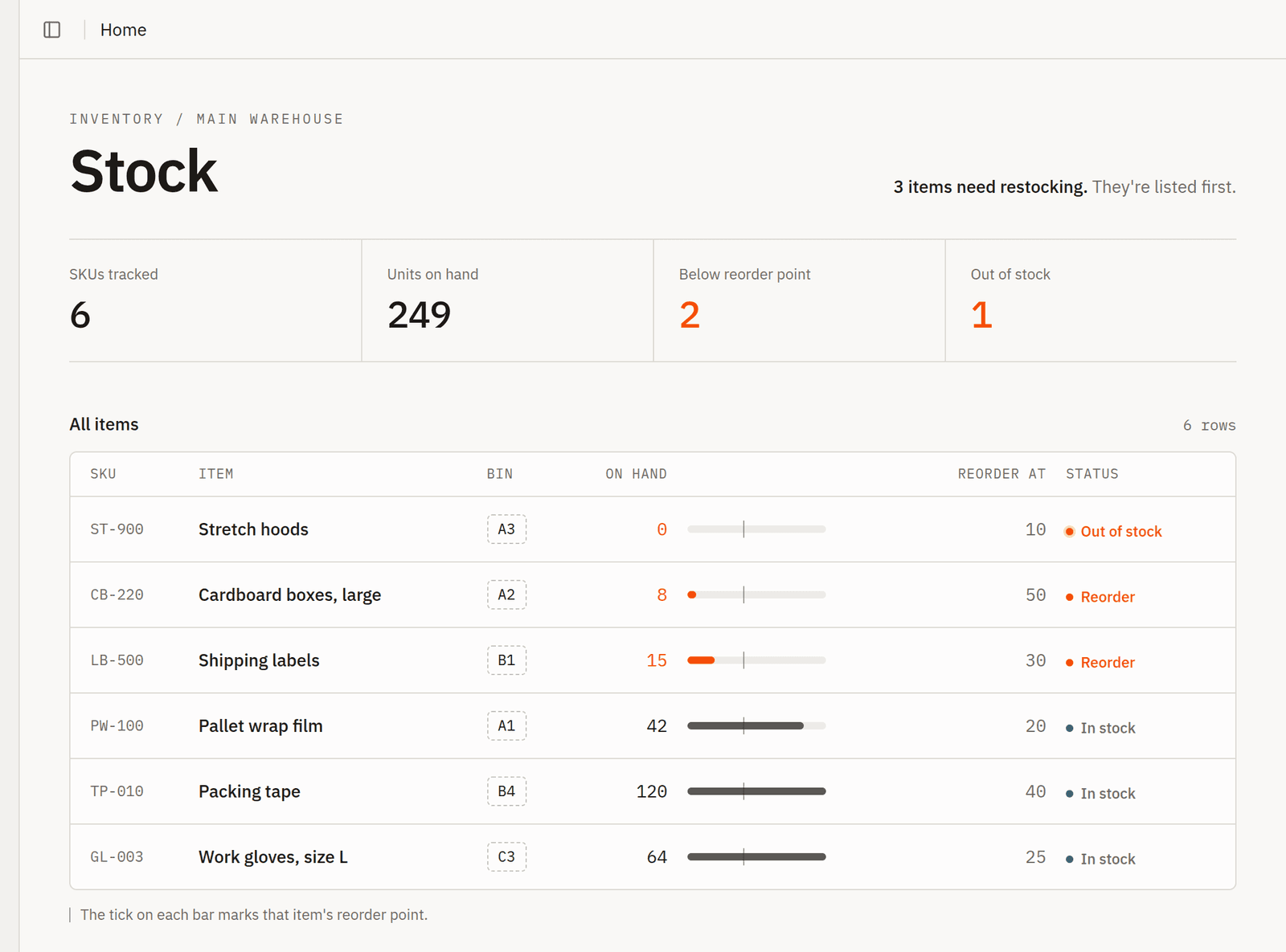
"Make it look modern, and avoid a generic AI look."
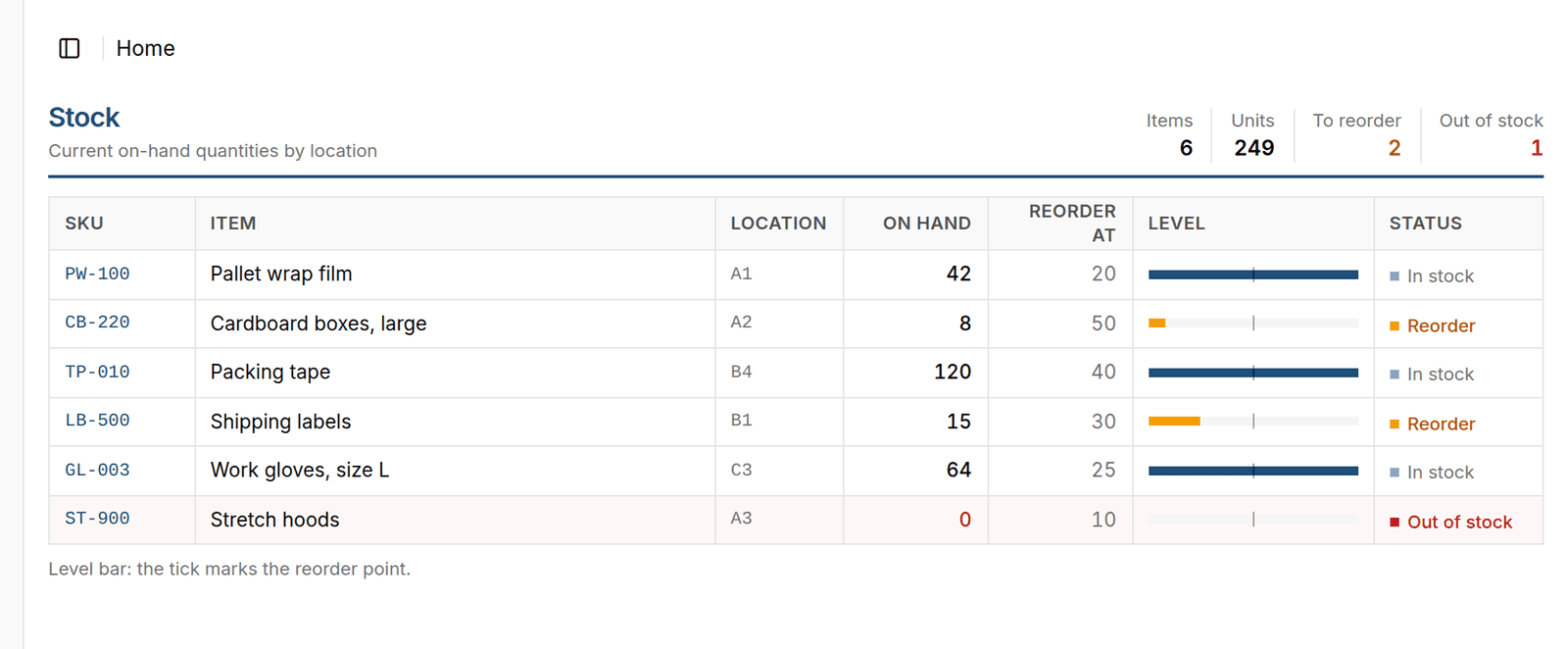
Named brand color (#1F4E79), spreadsheet density, and explicit patterns to skip.
Three runs per prompt is direct evidence on these examples rather than a broad statistical benchmark, so work in passes: inspect the first result in the preview, notice any default styling you don't want, and name those patterns in your follow-up.
For small visual changes on a single element - editing copy, padding, font size, or colors - turn on Select to the right of the prompt field and edit the element directly instead of prompting. Selecting an element shows an @ badge (such as @button) in the prompt field for visual editing, and Henosia doesn't receive that selection with your chat message. When you ask for a change in chat, name the element and where it sits on the page. See Select.
Once your team's colors, typography, and layout rules settle, save them in a skill or organization skill so you don't have to repeat them in every project.
Check the result
When Henosia finishes, read its summary before moving on. It lists what it built, what it verified in the code, logs, and preview, and what it couldn't test on its own - such as flows that require signing in as another user or connecting a live service.
Try those flows in the preview yourself. Where business logic or access rules matter, ask Henosia how it verified them:
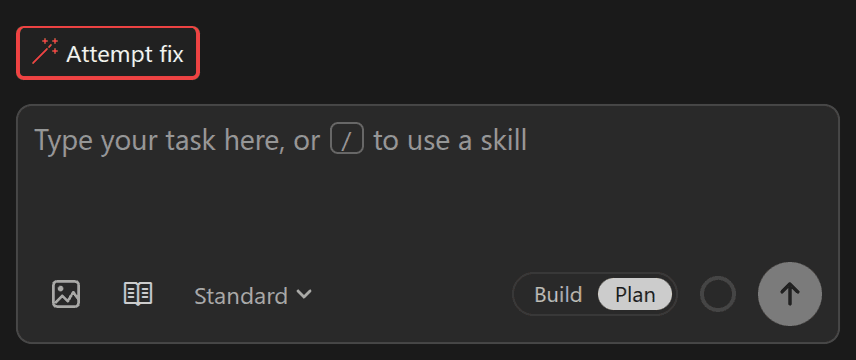
If the preview shows a build or runtime error, refresh the preview if needed and choose Attempt fix in the preview banner or above the prompt field. Attempt fix uses whichever mode (Plan or Build) is currently selected: in Plan, Henosia writes a fix plan first and waits for you to choose Build this plan; switch to Build first when you want it to apply the fix right away.
Before sharing or publishing, open Security in the left toolbar to check Supabase Security Advisor and Project Upgrade Security Advisor. Select any finding to add context for Henosia, or choose Attempt fix without prompting.
Steer and recover
Watch the progress updates during the first minute of a build. If Henosia heads down the wrong path - editing the wrong page or misunderstanding a rule - choose Stop in the prompt field right away and redirect it in your next message. Stopping keeps the file changes made up to that point.
If you've corrected the same issue twice and it still isn't right, a third correction rarely helps because the conversation now holds two failed attempts that Henosia keeps reading. Instead, stop any active work, choose Restore on an earlier checkpoint (use Compare first if you want to check what changed), choose Restore Files & Task, and send one fresh prompt that includes what you learned. See Compare and Restore.
Keep follow-up messages in the same task while you're working toward one goal, and choose New task when you start a separate piece of work - for instance, after finishing the holiday request form, start a new task to build the yearly manager export. You don't need to start over just because a chat is long: Henosia condenses older messages automatically, and during the Build run started from Build this plan it keeps your approved plan attached word for word. Splitting tasks by goal keeps context focused on the current job and makes History easier to search.
Make it stick
When you correct Henosia on the same project rule twice, add that rule to AGENTS.md at the root of your project (or ask Henosia to add it for you). Keep AGENTS.md short and limited to project-wide facts Henosia can't read from the code itself, such as domain terms, currency formatting, or folders it shouldn't change.
Put longer, repeatable workflows - a brand guide, form validation rules, or a pre-publish checklist - into a skill instead. Henosia loads skills automatically when they match your task, or whenever you choose Use a skill (or type /) in the prompt field. Share team-wide rules across every project with organization skills.
Keep AGENTS.md and your skills current as your app changes, and delete rules that no longer apply. See Customize how it works.
What you can stop doing
Much of the prompting advice circulating online was written as workarounds for earlier AI models, or repeats instructions Henosia already has built in.
| Old habit | Why you can drop it |
|---|---|
| "You are an expert UX designer and senior React engineer..." | Henosia already works as a design engineer. Use those words to describe your users and their workflow instead. |
| Pasting lists of UX laws or general design principles | Broad reminders change very little. Name the specific layout, colors, and density you want, and list the specific patterns to leave out. |
| "Make it look modern" or "avoid a generic AI look" | Trades one stock look for another - in our runs, hero-sized headings in all three runs and unrequested sign-in gradients in two of three. Name your hex colors, density, and the exact patterns to skip. |
| "Think step by step", "be thorough", or ALL CAPS | Henosia already plans and reasons before acting, and heavy emphasis can make it over-apply a rule. State rules plainly and give the reason when one isn't obvious. |
| Splitting one feature into tiny step-by-step prompts | Henosia plans and carries multi-step features through on its own. Split tasks by goal, not by size. |
| Starting a new task because the conversation is long | Henosia condenses older messages on its own (and keeps your approved plan attached word for word during the Build run started from Build this plan). Start a new task when you move to a separate job. |
| "Make sure it's secure" in every prompt | Henosia keeps Row Level Security enabled by default and keeps secrets out of chat. State your business access rules instead: who may view or change which records. |
| Pasting generic code-review checklists | Henosia checks its code, logs, and preview before finishing. Ask targeted questions about the behavior and edge cases that matter to your team. |
Build with the agent
Plan together, follow progress, answer questions, and compare or restore checkpoints.
Customize how it works
Set project-wide conventions in AGENTS.md, reusable skills, or Custom Instructions.
Skills
Package brand guidelines, validation rules, and repeatable checklists for your project or organization.