Sign in and onboarding
Sign in at app.henosia.com with your work account. You don't need to fill out a sign-up form first: if you don't have an account yet, Henosia creates one the first time you sign in.
Sign in
You can sign in in two ways:
- Choose Continue with Google or Continue with Microsoft to sign in with your work Google Workspace or Microsoft 365 account.
- Enter your work address in Company Email address and choose Sign in using magic link. Henosia shows Magic link sent and emails a sign-in link to that address. If it hasn't arrived after a minute, check your spam folder or choose Resend email.
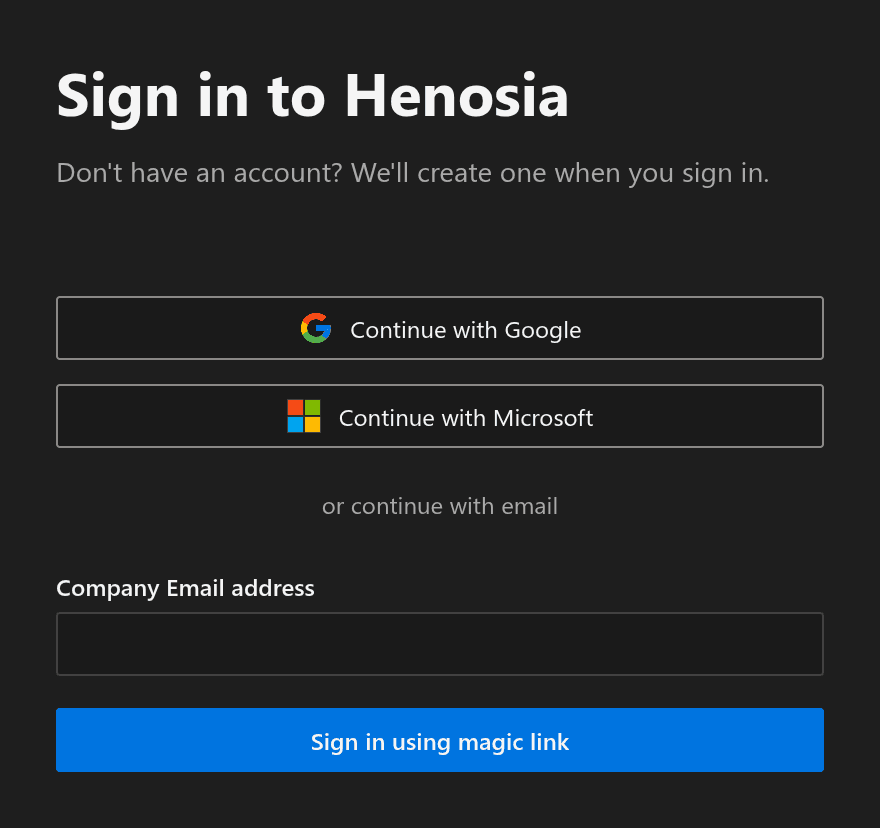
Henosia doesn't use passwords, and you can't sign in with GitHub. If you work with GitHub repositories, sign in with your work email or work Google or Microsoft account first, then connect GitHub from the dashboard (see Connecting GitHub).
Work accounts only
New Henosia accounts require a work email address, a Google Workspace account, or a work or school Microsoft 365 account. Personal email providers (such as Gmail, Outlook.com, Hotmail, Yahoo, Proton Mail, and HEY) and personal Google or Microsoft accounts are turned away with Henosia is for teams. Sign in with your work email. (or Sign in with your work Google Workspace or Microsoft 365 account.).
Organization invitations also require a work email address unless the person already has a Henosia account. If you want someone outside your company to open a published app with a personal email address, add them as a guest in Henosia Auth instead. Guests sign in to that published app with a one-time code sent to their email.
Onboarding
The first time you sign in with a new account, Hep asks four short questions to set up your workspace:
- Your full name and job title.
- How familiar you are with using AI at work (Curious, Exploring, Applying, or Building).
- What you want to improve at work (Automate repetitive work, Build tools for my team, Create an interactive demo or prototype, or Improve how my team works together).
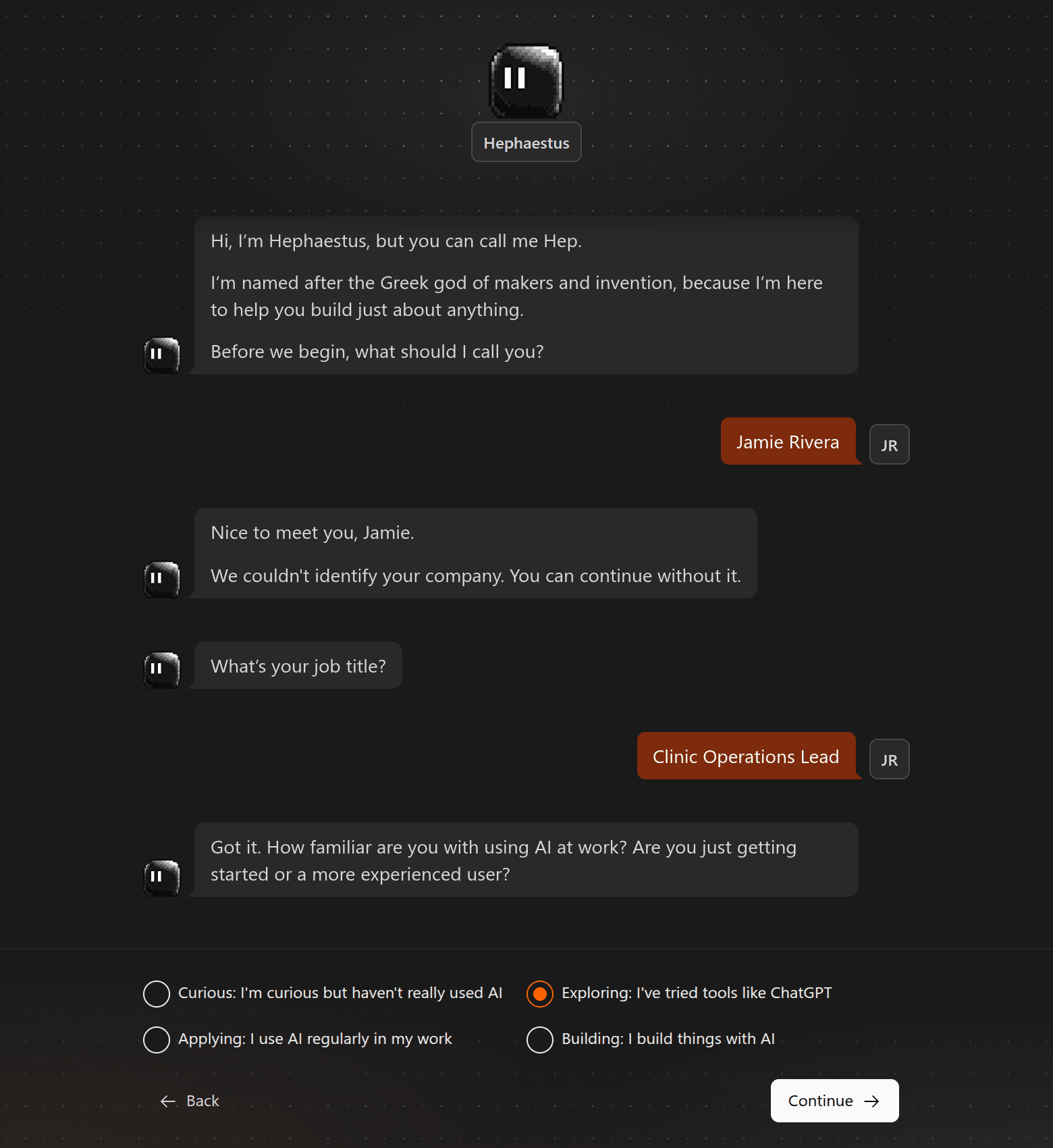
Choose Continue after each step (or Back to change an earlier answer), then choose Finish so Hep generates starter ideas for your role and goals.
To go straight to the dashboard instead, choose the X (Skip onboarding) next to the progress bar in the top right. Skipping ends onboarding for your account, so Build inspiration won't appear on your dashboard.
Build inspiration
When you finish onboarding, your Dashboard shows Build inspiration below the What do you want to build? prompt field, with up to three project ideas for each goal you picked.
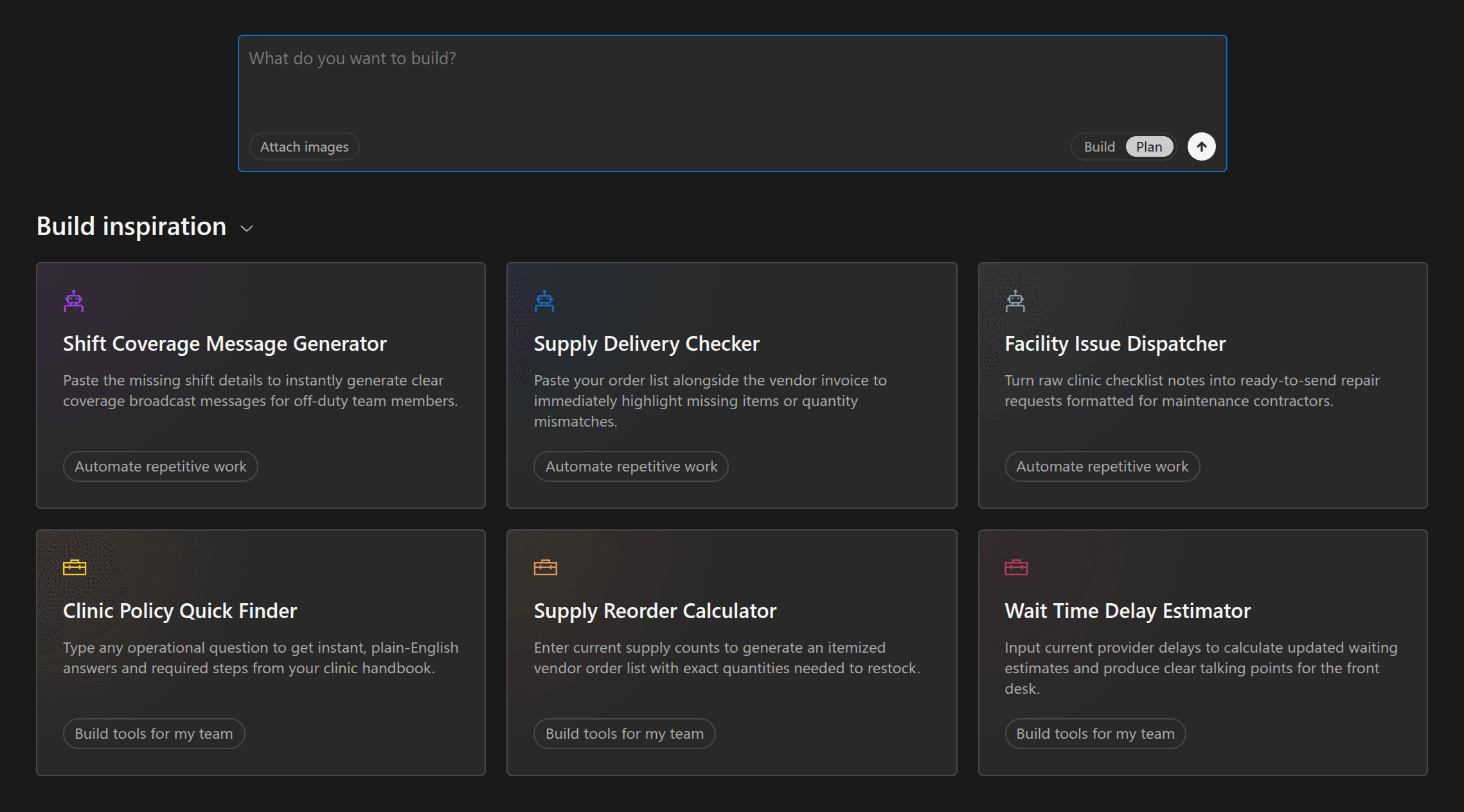
Choose any card to have Henosia write a starter prompt into the prompt field and switch to Build. From the callout that opens, choose Edit first to adjust the prompt in your own words, or choose Start building to create the project right away. You can collapse Build inspiration at any time with the arrow next to its heading.