Security panel
Choose Security (the shield icon) in the left toolbar of the builder to check your project for database access problems and critical package upgrades before or after you publish.
The Security panel opens on the right side of the builder in place of the preview, keeping your chat open on the left so you can review findings and ask Henosia to fix them side by side. Choose Back to preview (×) in the top right of the panel to return to your app.
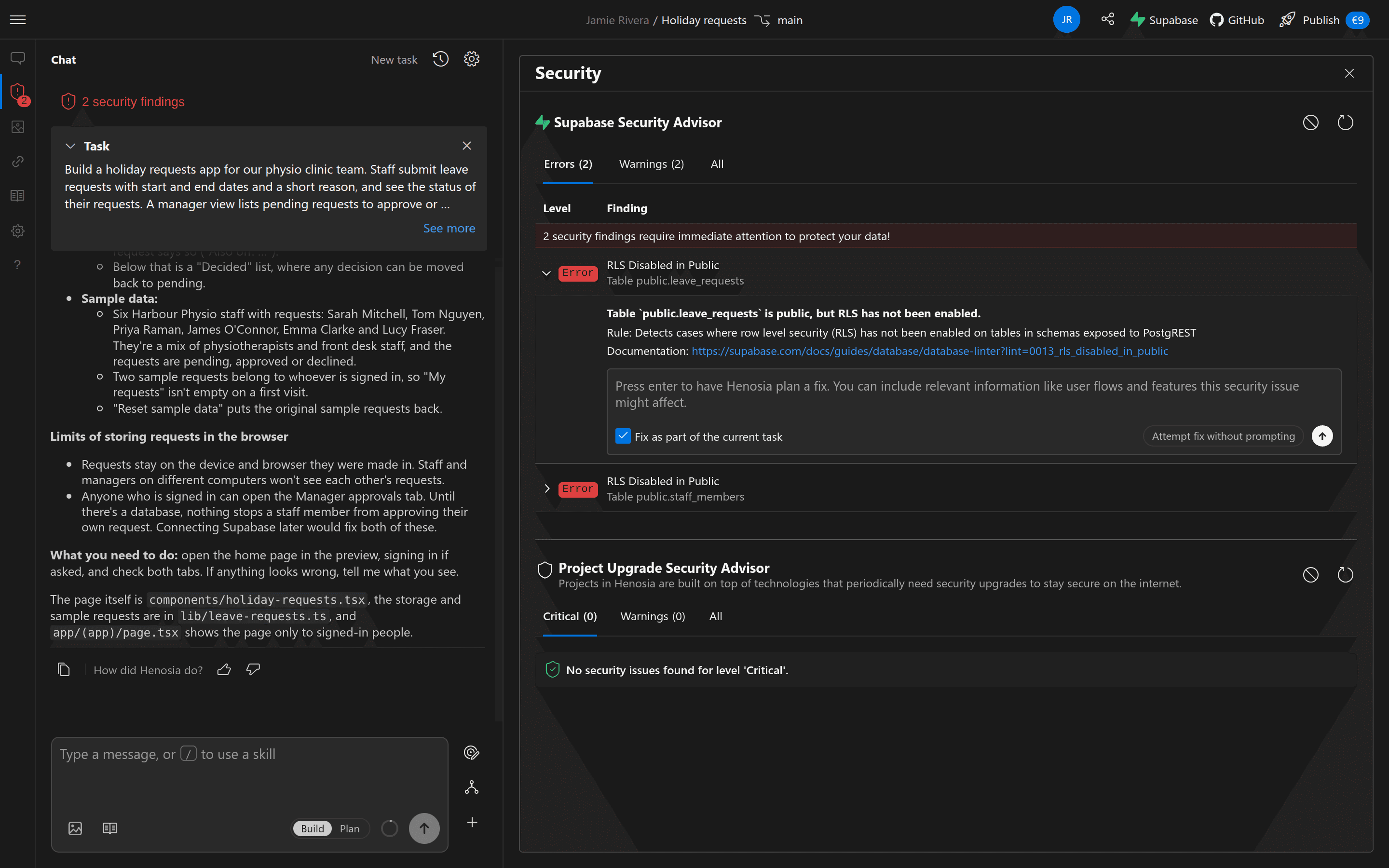
Where security alerts appear
When your project has unmuted Supabase errors or critical package upgrades, Henosia shows the error count in these places:
- A red badge on Security in the left toolbar.
- A red "2 security findings" chip at the top of the chat.
- A notice at the bottom of the Publish dialog (covering both database errors and critical package upgrades).
- A notice at the bottom of the Supabase dialog (covering database errors).
Choosing the chat chip or the notice in either dialog opens the Security panel straight to its errors.
Warnings and informational notes do not add to the red badge count, and security findings do not block Build & Publish. Check the panel before you publish an app that holds company or customer data.
Supabase Security Advisor
When a Supabase project is connected, Supabase Security Advisor checks your database tables, functions, and authentication settings using Supabase's security linter.
Findings are grouped into three tabs:
- Errors: issues that could expose data, such as a public table with Row Level Security (RLS) turned off, or materialized views and foreign tables exposed to the API.
- Warnings: hardening settings worth reviewing, such as mutable database function search paths or disabled leaked-password protection.
- All: every error, warning, and informational item in one list.
Choose Refresh (the circular arrow in the section header) to run the check again after making changes.
If no Supabase project is connected yet, if the connected database is inactive, or if Henosia can't run the checks against your organization's self-hosted Supabase instance, this section explains why no database findings are listed.
Fix a finding with Henosia
Choose any finding row to open its details, the Rule summary, a Documentation link to Supabase's guide for that check, and a prompt box to hand the fix to Henosia.
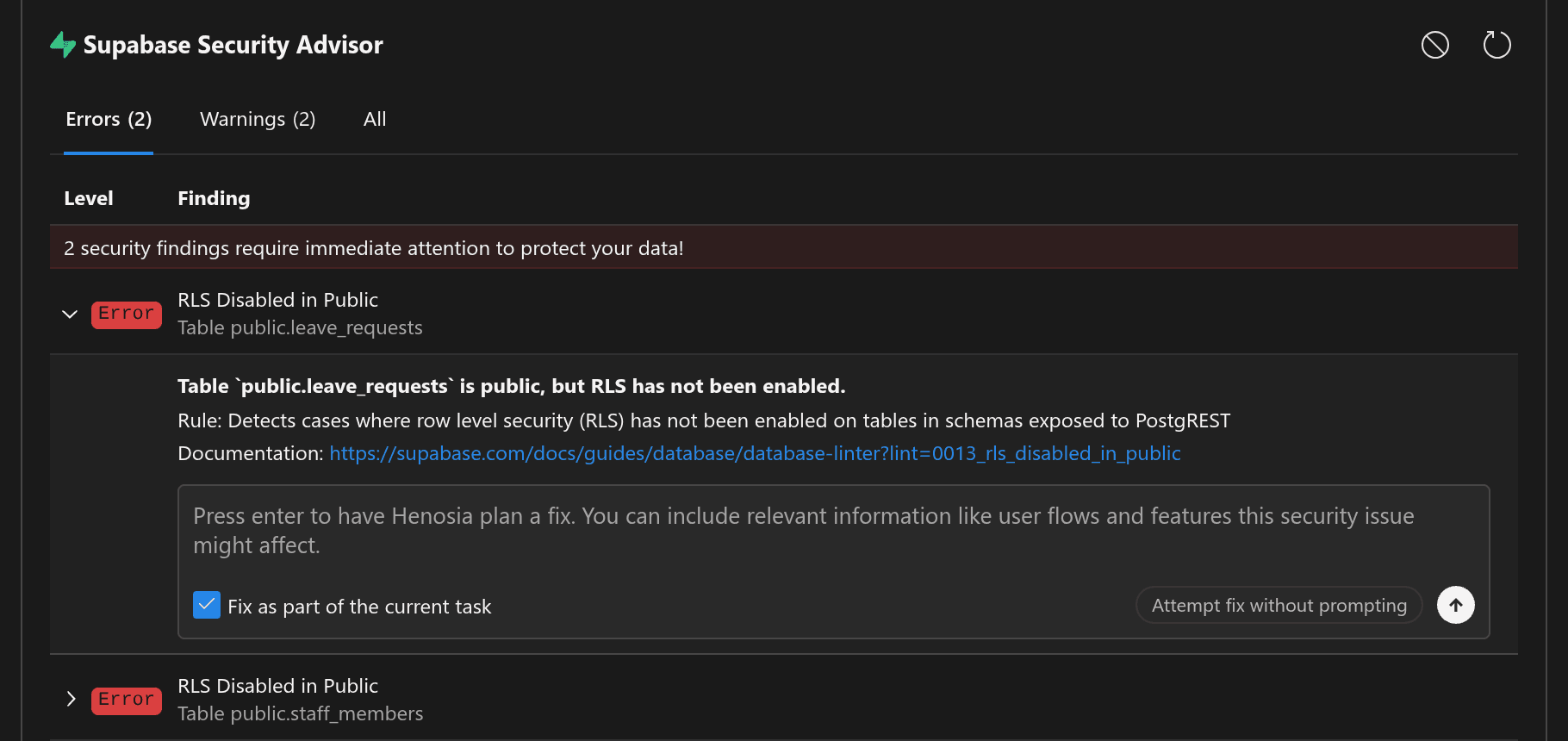
You can start a fix in two ways:
- Type context in the prompt box and press Enter (or choose Submit) to describe who should be able to read or change the affected data. For example, on a table without Row Level Security, write "Staff can see and create their own leave requests, and managers can see and approve requests for everyone." Typing in the box disables Attempt fix without prompting so your notes are sent.
- Choose Attempt fix without prompting to send the finding and Supabase's remediation guide directly to Henosia with no extra notes.
For database findings, Henosia always prepares the fix in Plan mode first so you can read the proposed access rules and choose Build this plan when they match how your team works.
If a task is open in your chat when you open the panel, Fix as part of the current task appears and is ticked, so Henosia keeps the context of what you were building. Untick it if you want the fix in a separate task instead. When the checkbox isn't shown, each fix starts a new task.
Project Upgrade Security Advisor
Below the database checks, Project Upgrade Security Advisor checks whether your project's React and Next.js packages need an upgrade to fix a known critical vulnerability, such as the React Server Components vulnerabilities disclosed in December 2025. Findings are grouped under Critical, Warnings, and All.
Expand a finding to read the vendor advisory links and hand the upgrade to Henosia:
- Choose Attempt fix without prompting to start a new Build task that upgrades the affected packages right away.
- Type notes in the prompt box and press Enter if you want Henosia to prepare a Plan first instead.
Republish after a package upgrade
Upgrading packages updates your project in the builder, not a site you already published.
If your app is already published when Henosia applies a critical package upgrade, the advisor keeps a Critical finding open reminding you to republish. Expand that finding, choose Open publish dialog, and run Build & Publish so your live site gets the upgraded packages. Once the publish finishes, the finding clears on its own.
Mute findings temporarily
Each advisor section has a mute button (the crossed-out circle next to Refresh): Mute Supabase security findings and Mute project upgrade security findings.
Muting a section marks it "MUTED", dims its rows, and removes its count from the left-toolbar badge, the chat chip, and the Publish and Supabase dialogs. When you mute Supabase findings and no unmuted errors remain, the Security shield in the left toolbar shows a small blocked icon instead of a red number.
Muting lasts only until you reload the project (or choose the mute button again to unmute), so unresolved errors are never hidden permanently.