Self-hosted Supabase
Organizations with self-hosted Supabase enabled (included with AppGen Enterprise) can connect Henosia to their own Supabase deployment instead of Supabase Cloud. Project databases and user accounts stay on servers your organization manages, connected through a lightweight management API that your team hosts.
Self-hosted Supabase is enabled per organization by Henosia. If your organization doesn't see Self-hosted Supabase under Organizations yet, email support@henosia.com to have it enabled.
Connect a project as a builder
When an organization owner or admin saves an Optional or Enforced self-hosted Supabase configuration, builders on the allow-list (or all organization members when the allow-list is empty) connect projects without signing in to supabase.com:
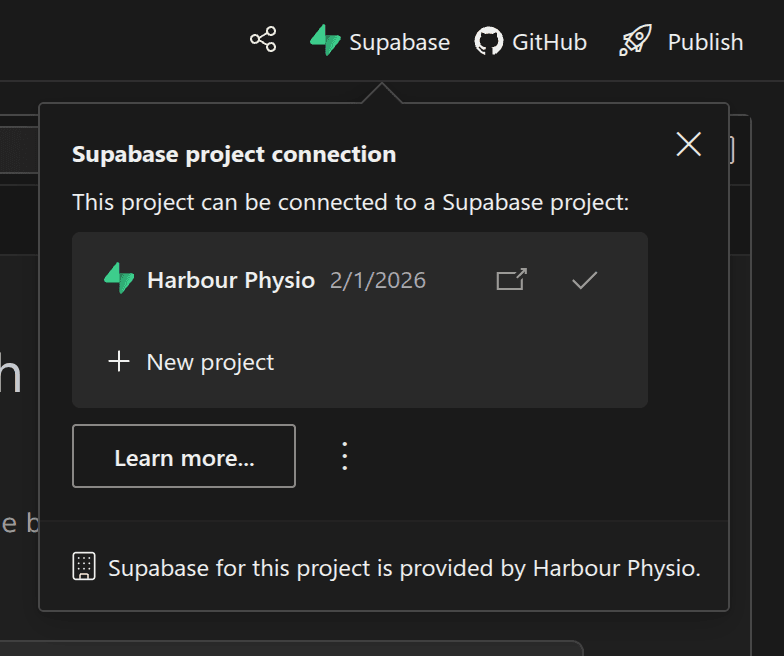
- Open your project in the builder and choose Supabase in the top right.
- Under Supabase project connection, the footer shows Supabase for this project is provided by <your organization> and lists your organization's self-hosted projects.
- Choose the checkmark on an active project to connect it (or choose New project if your organization configured a project creation link), then choose Add Supabase functionality as described in Connect Supabase.
How Supabase Cloud behaves alongside self-hosted projects depends on your organization's policy:
- Optional policy: Builders see your organization's self-hosted projects first, and can open More options (
⋮) and choose Connect a Supabase Cloud project instead when a project should use Supabase Cloud. - Enforced policy: New project connections must use a self-hosted project. Projects that were already connected to Supabase Cloud keep their existing connection.
Once connected, the project row includes a Refresh the access keys icon (↻). Use it whenever your platform team rotates the project's Supabase keys so Henosia updates .env.local in your sandbox.
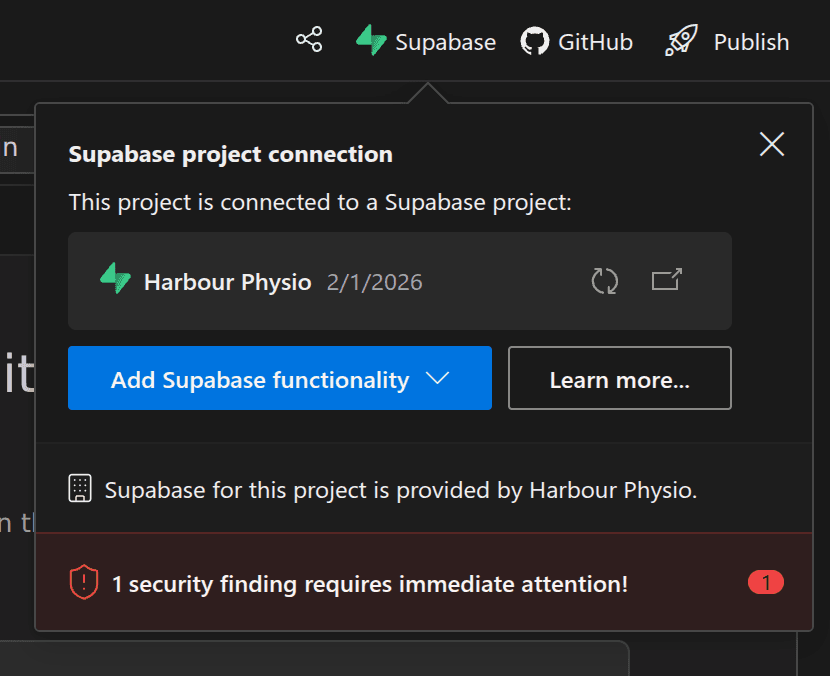
On projects without Henosia Auth, self-hosted Supabase cannot add preview redirect URLs automatically. Right after connecting or clicking Refresh the access keys, the Supabase callout displays a redirect hint (click Refresh the access keys to show it again if you closed the menu). Add the <preview-origin>/** pattern from that hint, along with your published domain, to GOTRUE_URI_ALLOW_LIST in your self-hosted Supabase configuration.
Configure self-hosted Supabase for your organization
Organization owners and admins (as well as owners and admins of a direct parent organization) can view and edit self-hosted Supabase settings. When a parent organization governs a child organization, the child's own owners and admins can view the inherited settings in read-only mode, while edits happen on the parent organization.
- From the Henosia dashboard, choose Organizations in the left sidebar and select your organization.
- Choose Self-hosted Supabase.
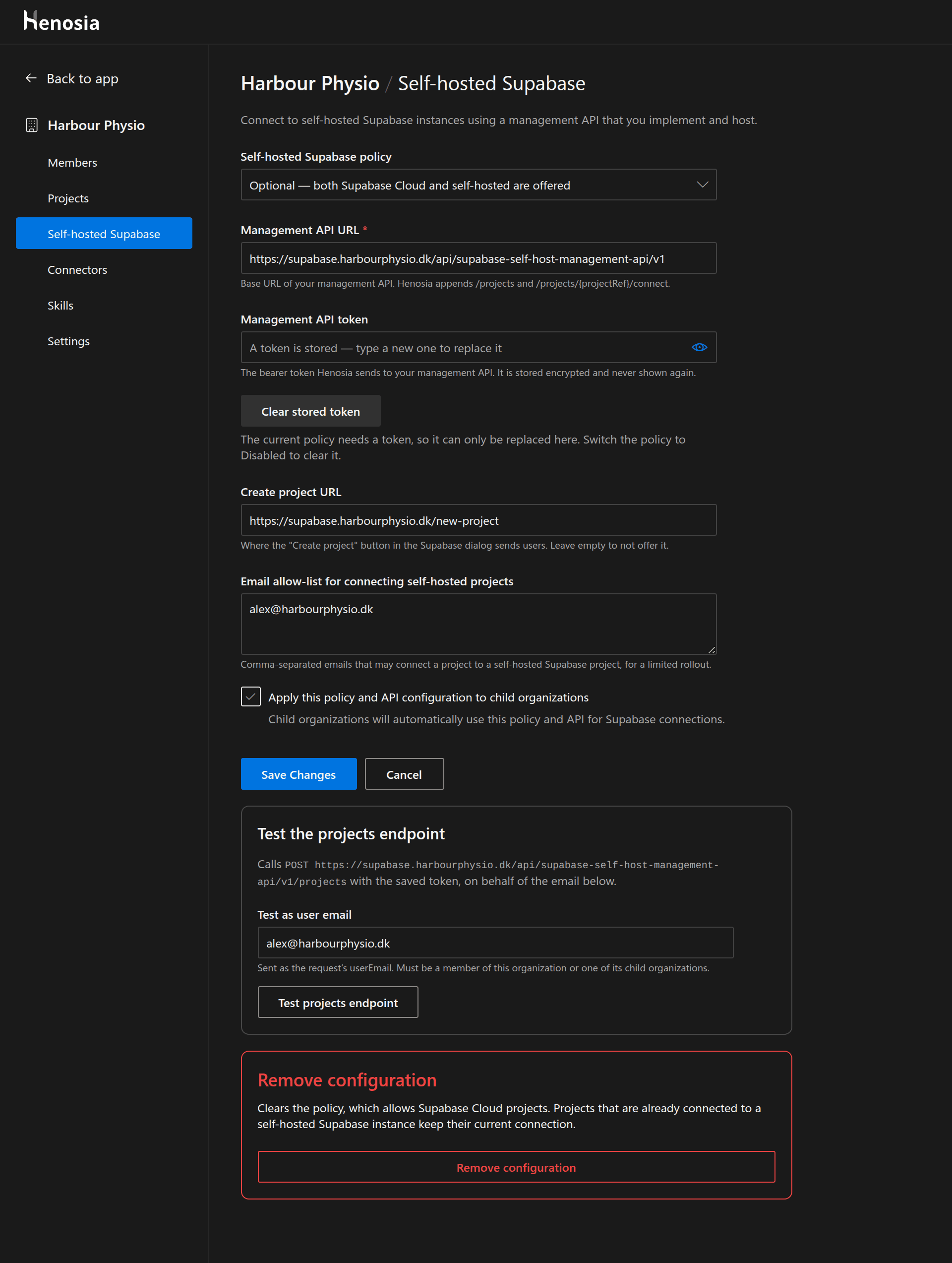
- Select a policy, enter your management API details, test the connection, and choose Save Changes.
Settings reference
- Self-hosted Supabase policy (required): Until a configuration is saved, self-hosted Supabase is not offered to builders and no policy is preselected.
- Optional: Offers both self-hosted projects and Supabase Cloud.
- Enforced: Requires all new connections to use a self-hosted project.
- Disabled: Offers only Supabase Cloud.
- Management API URL: Base
https://URL of the management API you host (Henosia appends/projectsand/projects/{projectRef}/connect). Must point at a publicly resolvable hostname on one of your organization's verified domains (or a direct parent organization's verified domain), with no plainhttp://, user credentials in the URL, bare IP address, query string, fragment, or HTTP redirects. - Management API token: Bearer token Henosia sends in
Authorization: Bearer <token>requests to your management API. It is stored encrypted and never displayed again; leave it blank when saving other edits to keep the stored token. To erase the token with Clear stored token, switch the policy to Disabled first. - Create project URL (optional): Where New project in the builder sends members (such as an internal provisioning form). Leave empty to hide New project.
- Email allow-list for connecting self-hosted projects (optional): Comma-separated member email addresses that may see and connect self-hosted projects during a limited rollout. Leave empty to allow all organization members. Under Enforced with a non-empty allow-list, unlisted members do not see self-hosted projects; they still see Connect Supabase project, and connecting to Supabase Cloud is rejected after authorization. Use Optional during a staged rollout if unlisted teammates still need Supabase Cloud.
- Apply this policy and API configuration to child organizations: Hands down your entire self-hosted configuration (policy, Management API URL and token, Create project URL, and email allow-list) to direct child organizations, which then show Managed by a parent organization in read-only mode.
- Test the projects endpoint: Calls
POST {managementApiUrl}/projectswith your saved token on behalf of a member email (Test as user email) and shows the HTTP status and response so you can verify connectivity before rolling out. - Remove configuration: Deletes the self-hosted configuration and stored token for the organization. Projects already connected to a self-hosted instance keep their current connection.
Management API and host requirements
To connect Henosia to your self-hosted Supabase deployment, implement two POST endpoints behind Management API URL that verify Authorization: Bearer <Management API token> and return JSON without HTTP redirects.
1. List available projects
POST {managementApiUrl}/projects
Henosia sends:
henosiaProjectId (an 8-character project ID) and henosiaProjectPath ({namespace}/{owner}/{repo}/{branch}) may be null, and userIpAddress is omitted on background project listings.
Return the projects this user may connect (with no secret keys):
2. Connect a project and return credentials
POST {managementApiUrl}/projects/{projectRef}/connect
Henosia sends the same fields as /projects, with userIpAddress required and attested via a short-lived ticket signed by Henosia and sent from the builder's browser. If the caller is not authorized for projectRef, return HTTP 404 with error code unknown_project rather than 403 so project identifiers cannot be enumerated. Otherwise return the credentials Henosia needs to configure the project sandbox and connect the agent's MCP client:
Self-hosted Supabase instance checklist
- Verified HTTPS hostnames: Serve
managementApiUrl,apiUrl,mcpServerUrl, andstudioUrloverhttps://on hostnames under a verified domain of your organization or its direct parent, with no user credentials in the URL.managementApiUrlandapiUrlmust also respond without HTTP redirects. - GoTrue auth settings: Enable custom OIDC / OAuth 2.1 provider administration (
/auth/v1/admin/...) if projects use Henosia Auth. For apps using Supabase Auth redirects directly, addhttps://<sandbox-origin>/**and your published app origins toGOTRUE_URI_ALLOW_LIST. - Studio MCP server: Expose Supabase Studio's
/mcpendpoint (Studio2025-10-07or newer) behind an HTTPS reverse proxy that checksAuthorization: Bearer <mcpApiKey>and preserves query strings. Plan mode appends?read_only=trueand checks that the SQL session either runs in a read-only transaction (transaction_read_only = on) or connects assupabase_read_only_user(configure a password forsupabase_read_only_userso Studio's read-only connection can sign in). - Security Advisor queries: (optional) Expose
pg-meta/pg/queryvia Kong so Henosia's Security panel can run Supabase Security Advisor checks; if omitted, the rest of the connection still works. - Edge Functions: Henosia deploys Edge Functions when the MCP endpoint exposes a compatible
deploy_edge_functiontool. If your MCP server does not expose that tool, Henosia writes Edge Function source files undersupabase/functions/for your team to deploy through your own CI/CD pipeline.