Work with your team
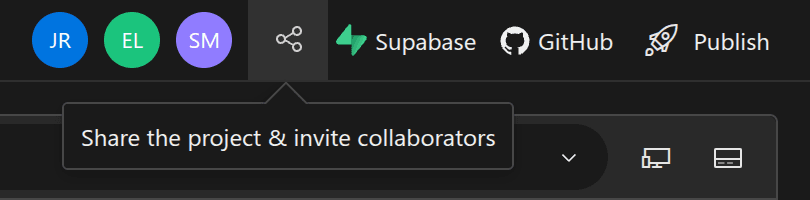
You can invite teammates into your project to build together or ask a developer for help, and share a link with someone outside your team to test a prototype. Everyone currently in the project appears as initials in the top bar.
Organization owners and admins already have automatic access to every member's projects: open Organizations in the dashboard, select your organization, and choose Projects. Other organization members and people outside your organization join through an invite link.
Invite collaborators
If you own the project, choose the Share icon (Share the project & invite collaborators) in the top right of the builder, next to Supabase.
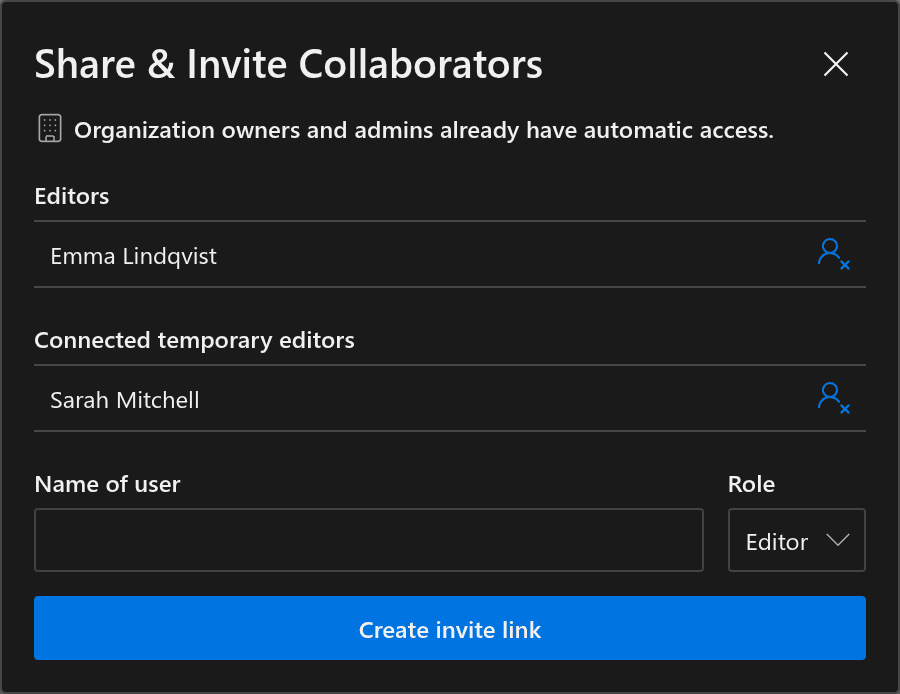
In Share & Invite Collaborators, enter the person's name under Name of user and choose Create invite link. Editor is the only Role.
Copy the Invite link and send it to them. Each link works once and expires after 8 hours, so create a new link for each person you invite.
Editors and temporary editors
What happens when someone opens the link and chooses Accept invitation depends on whether they're signed in to Henosia:
- If they're signed in, they become an Editor on the project and keep access until you remove them. Their account name appears under Editors in Share & Invite Collaborators.
- If they're signed out, they join right away without an account under the name you entered, and appear under Connected temporary editors while they have the project open. Temporary access lasts for up to 8 hours from when the link was created, or until you remove them, and any agent work they run uses the project owner's plan.
To remove an editor or a connected temporary editor, open Share & Invite Collaborators and choose Remove next to their name. Removing a temporary editor ends their session and disconnects them right away, so they can't reopen the project without a new invite link.
Only the project owner sees the Share icon and manages invites, and only the project owner or an organization owner or admin can push or pull GitHub changes. Temporary editors also can't connect Supabase or rename or delete the project.
Build together
You and your collaborators follow the same conversations and see the agent's progress together. Each person can browse other tasks and move around the preview on their own without interrupting the agent or changing what others see. When the agent opens a page to check its work, everyone's preview follows so you see what it sees.
One agent task runs on the project at a time. Editors and temporary editors can prompt the agent, edit visually and in code, answer questions, approve or decline actions, stop the agent, and compare or restore changes. Let your team know before restoring shared work.