Follow and steer
The chat shows your messages, Henosia's replies, progress updates, and checkpoints for the current task. Use Stop in the prompt field whenever you need Henosia to stop working (stopping does not undo changes it has already made; use Restore to go back).
Your messages
Your first prompt appears in the task box at the top of the chat (see Tasks and history). Follow-up messages appear on the right as blue bubbles sized to fit your text. Hover a follow-up message and choose Copy message on its left to copy it.
Images you attach appear as previews inside your message; choose one to open it in full size in the Code view. Any skills you added with / appear as clickable references that open that skill in the Skills panel.
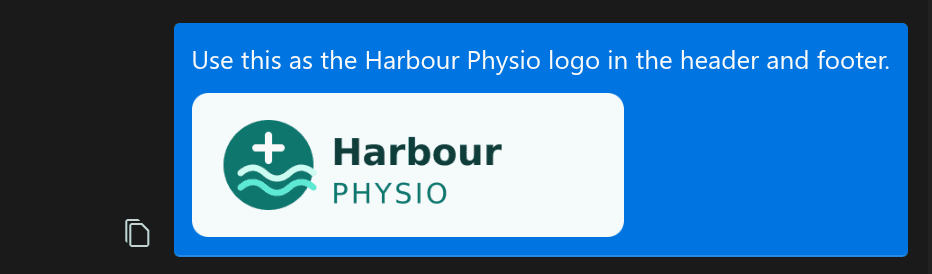
When you paste more than 10,000 characters into the prompt field, Henosia turns the paste into a "Pasted text · N lines" chip instead of filling the box (up to 1,000,000 characters of pasted text per message). Choose a chip in the prompt field or in a sent message to read the full text, or hover it in the prompt field and choose × to remove it before sending.
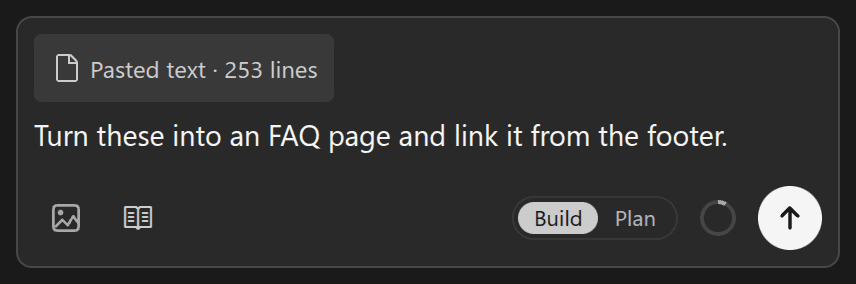
Henosia is working
When Henosia is working and no other step is showing progress, a status line at the bottom of the chat shows a small blue dot with Thinking (until output begins) or Working and the elapsed time, such as "Thinking 2s" or "Working 4m 45s".
As Henosia reasons through a step, a Thinking: line shows a short excerpt of its latest thought. Choose the line to read the full reasoning.

Text and progress updates
Henosia writes short messages to tell you what it's doing next. When it loads one or more skills for the task, a Henosia used … line lists them at the top of the reply. When a reply includes a code block, hover the block and choose Copy code in its top-right corner to copy it.
Henosia groups its steps, such as reading and editing files or running commands, into progress updates like "Henosia created 3 files". Each update lists the files or commands it covers. Open an update to see each step.
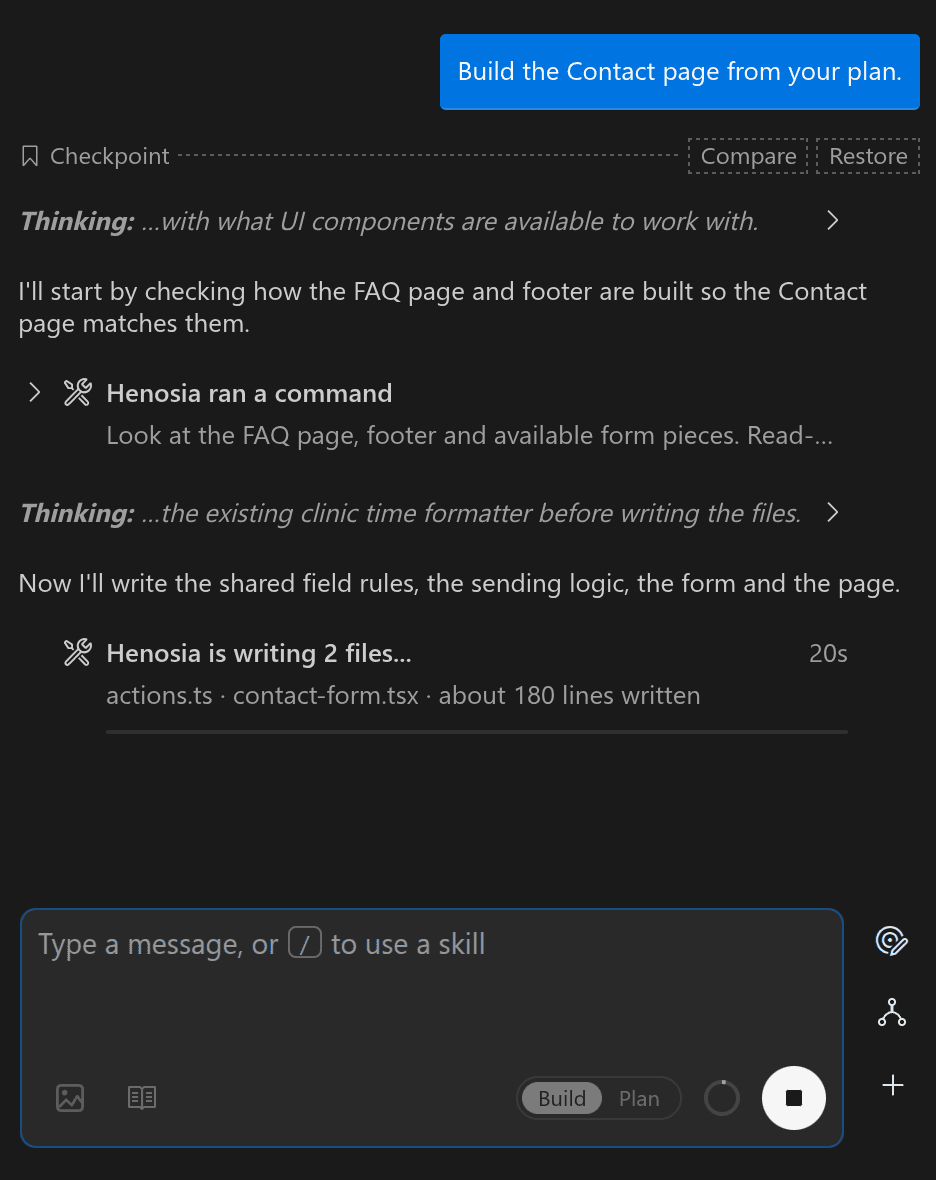
The dotted lines are checkpoints. Use them to compare or restore your project.
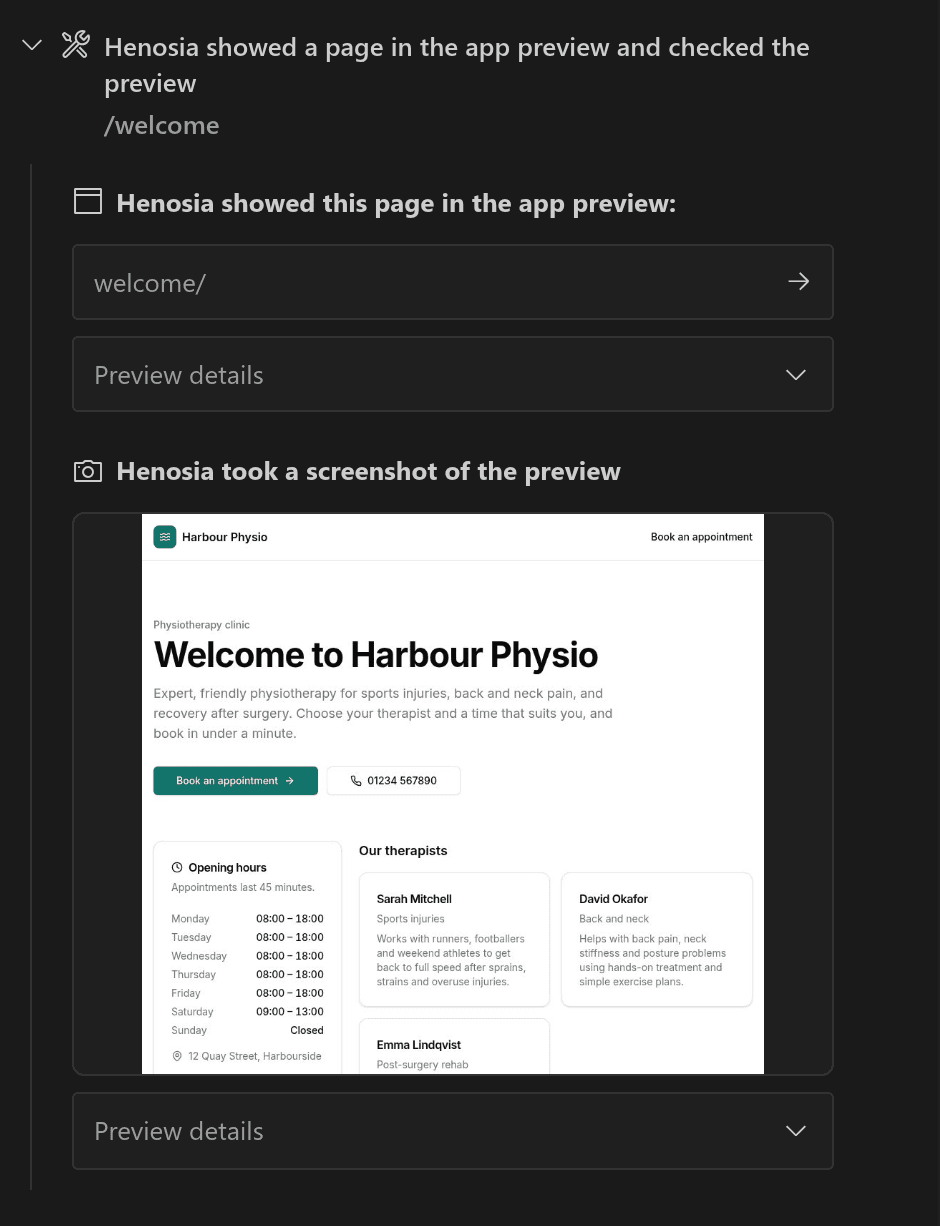
When Henosia checks a page in your preview, the progress update says so. Open it to see the page Henosia looked at, including any screenshot it took.
Plans
In Plan, Henosia answers with a plan. Choose Build this plan below it when you're ready, or Copy plan to copy it. Read more in Plan and build.
Questions
When Henosia needs decisions only you can make, it shows a question form in the chat ("Henosia has a question", or "Henosia has 3 questions" with a "1 of 3" counter and a tab for each topic).
Choose one of the options (Henosia marks its suggestion Recommended when one stands out), or use Type your own answer to write your own. When there's a single question, picking an option submits right away.
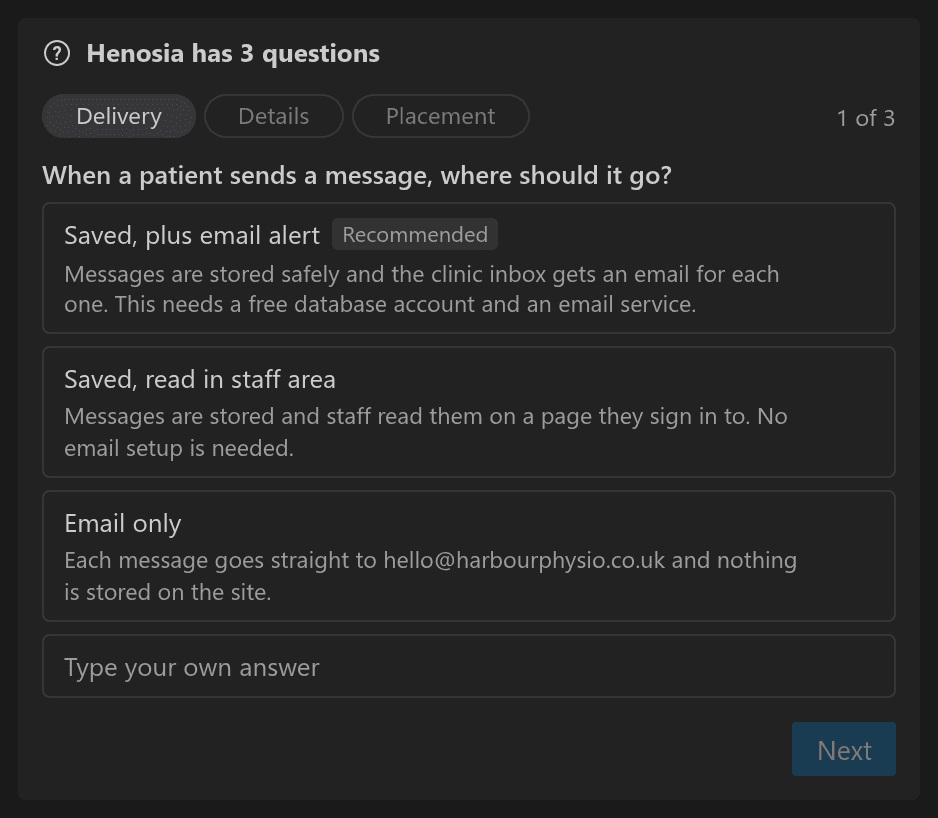
When there are several questions, picking an option moves to the next question and ends on a Review step. Choose any row or Back to change an answer, then choose Submit answers.
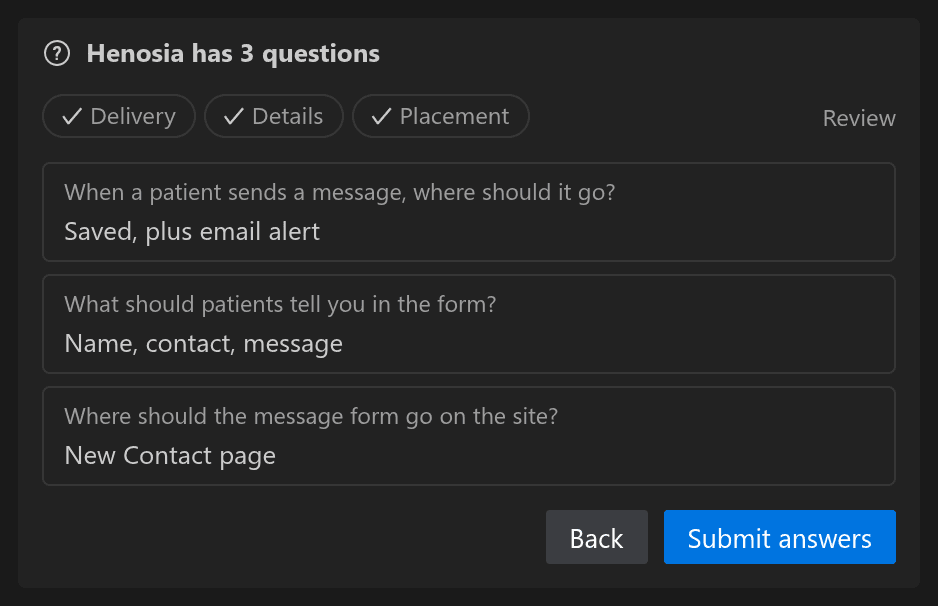
You can also reply in the prompt field instead, for example when you want to attach an image with your answer. The card then closes as Answered in chat.
Permission requests
Henosia asks for permission before a risky action outside your project that you didn't explicitly ask for, such as sending a message, changing live data, or spending money. The Permission required card says what Henosia wants to do and what it affects. Choose Show command to see the exact command (or Show details for actions that aren't commands).
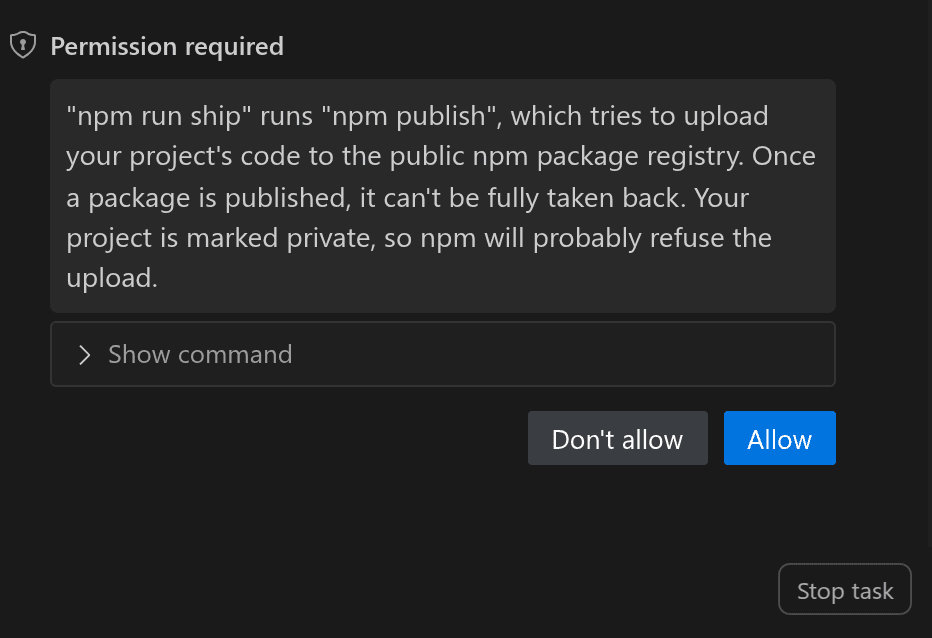
Approval requests wait until someone responds. Choose Allow or Don't allow (or Stop task to end the run). If you send a message instead, Henosia doesn't run the action and reads your message.
Connecting Supabase
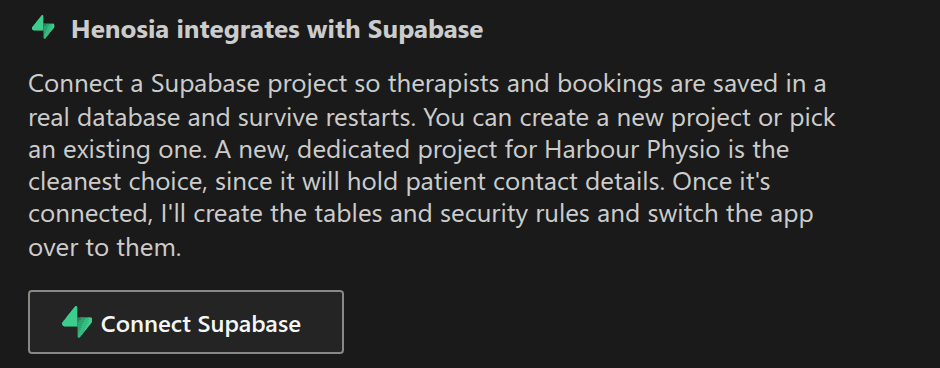
If a task needs a database and your project isn't connected yet, Henosia asks you to connect Supabase and waits. After you connect, it picks up where it left off. See Connect Supabase.
Preview errors
If your app hits a build or runtime error in the preview while Henosia is idle, an Attempt fix button appears above the prompt field (for build errors, the "The preview may be unavailable due to a build error." banner at the top of the preview also has Attempt fix).
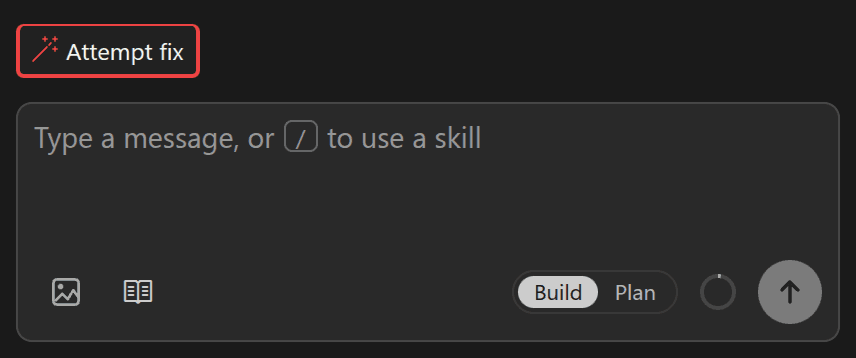
Choose Attempt fix to send the error details to Henosia in your current mode. In Build, Henosia fixes the problem; in Plan, it replies with a plan for the fix.
Summaries and feedback
When Henosia finishes, it tells you what it built, what it checked, and what it couldn't check. Use this to decide what to try in the preview.
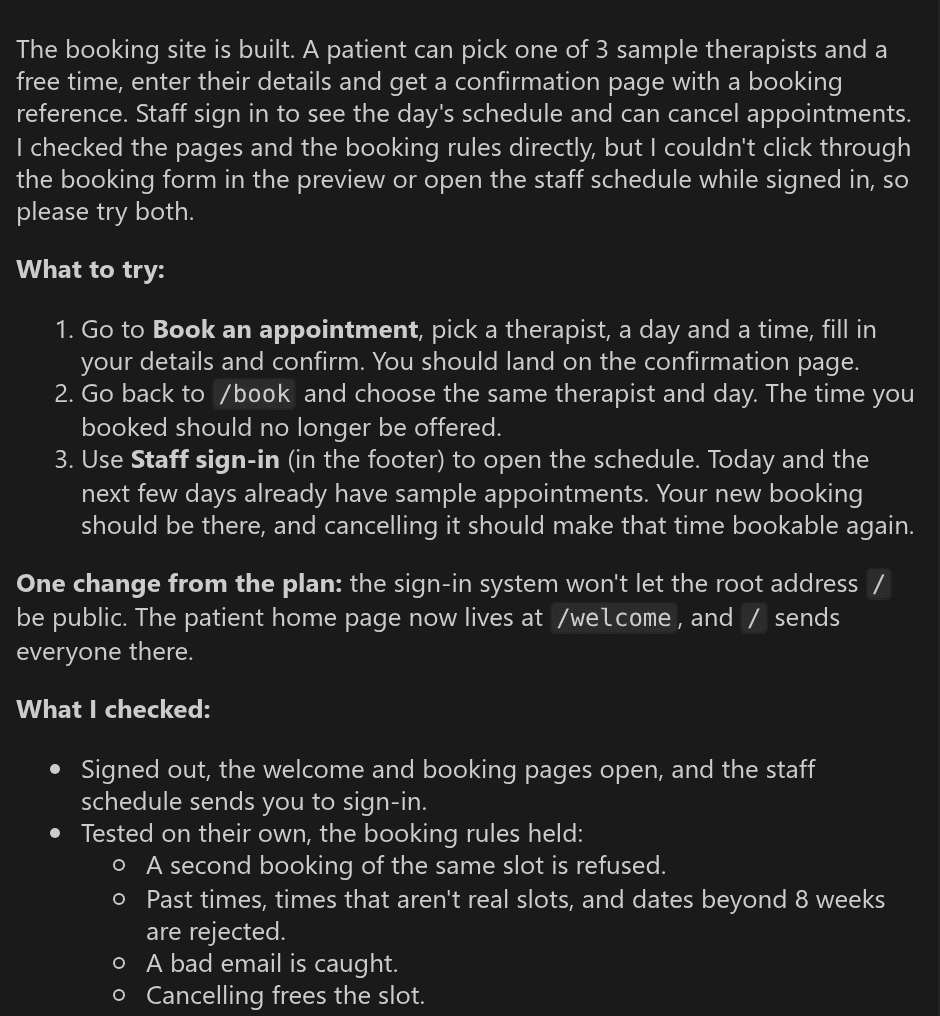
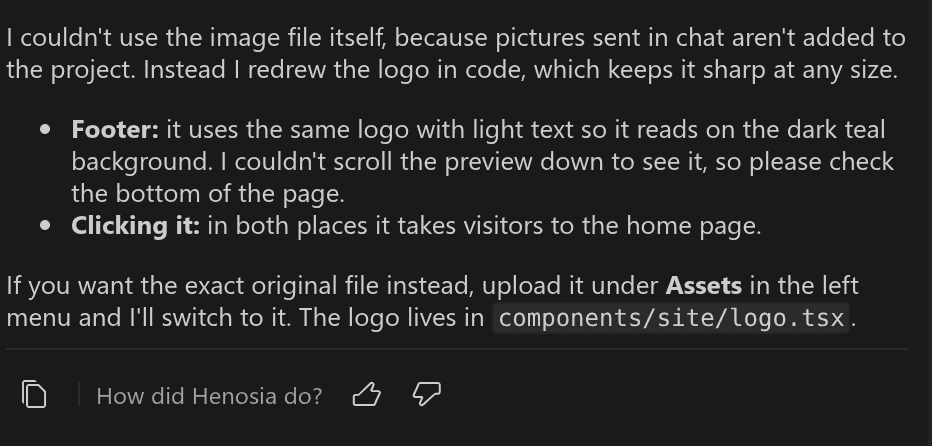
At the bottom of every finished reply, choose Copy reply to copy Henosia's response, or use the thumbs next to How did Henosia do? to rate how the turn went and add a written note when you can. You can also use Help in Henosia to send feedback by email or talk to us on Discord (see Support).
Tidying up older messages
In a long conversation, Henosia condenses older messages into a summary for itself so it can keep working. You see the notice "Tidied up older messages into a short summary." Your chat stays as it was.