Tree
The selection tree shows how every section, frame, repeater, component, and text node on the current page is nested. Use it when clicking in the preview grabs a child element instead of its wrapper, or when you want to verify where an element sits before moving, inserting, or deleting something.
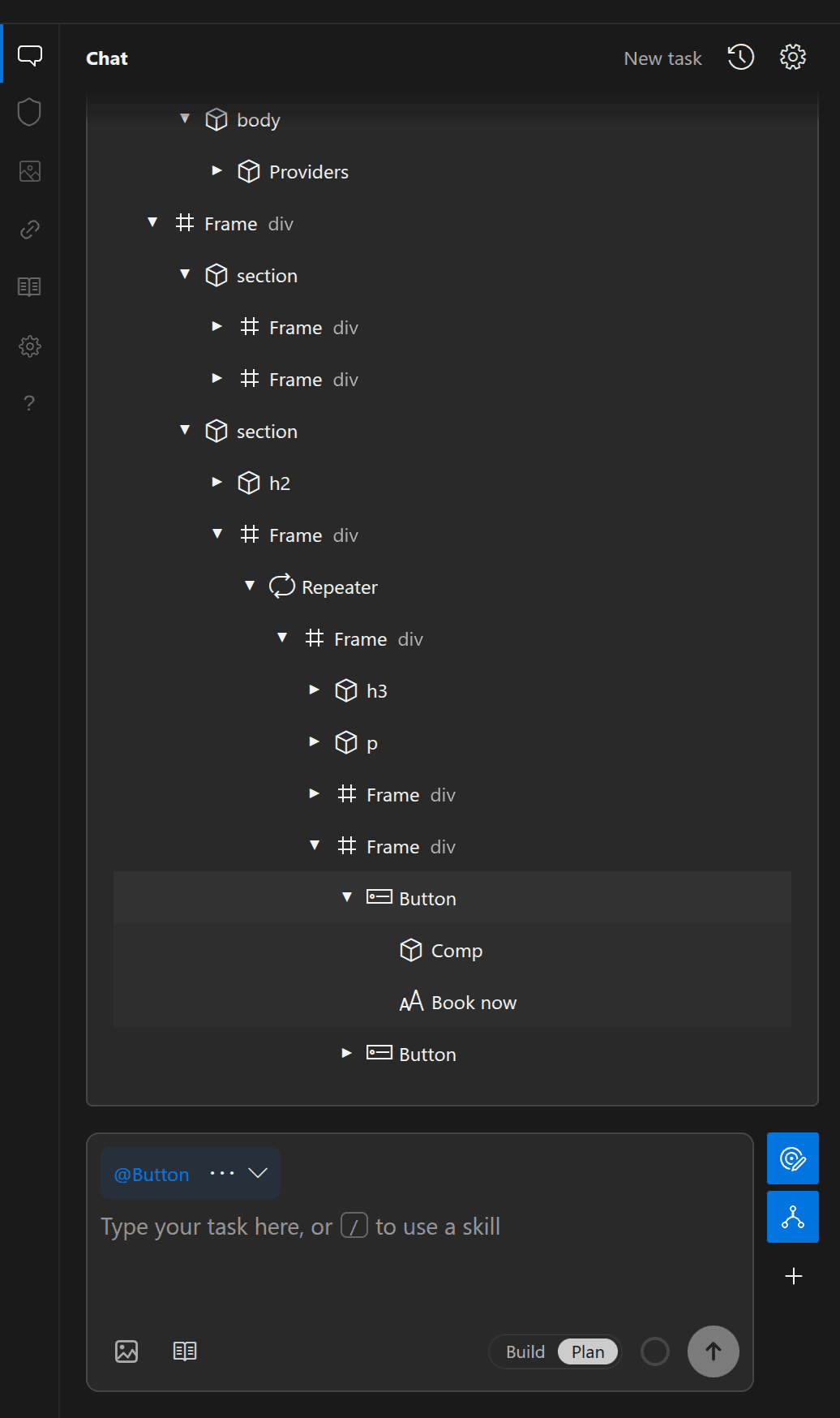
Open and use the selection tree
Click Toggle the selection tree (the middle icon to the right of the prompt field) to open or close the tree above the prompt field. Opening the tree turns on Select to edit automatically if it wasn't already active.

Inside the tree, you can:
- Hover any row to highlight that element in the preview, or click to select it.
- Use the arrows next to containers and components to expand or collapse their children.
- Drag rows to reorder elements or move them into another container.
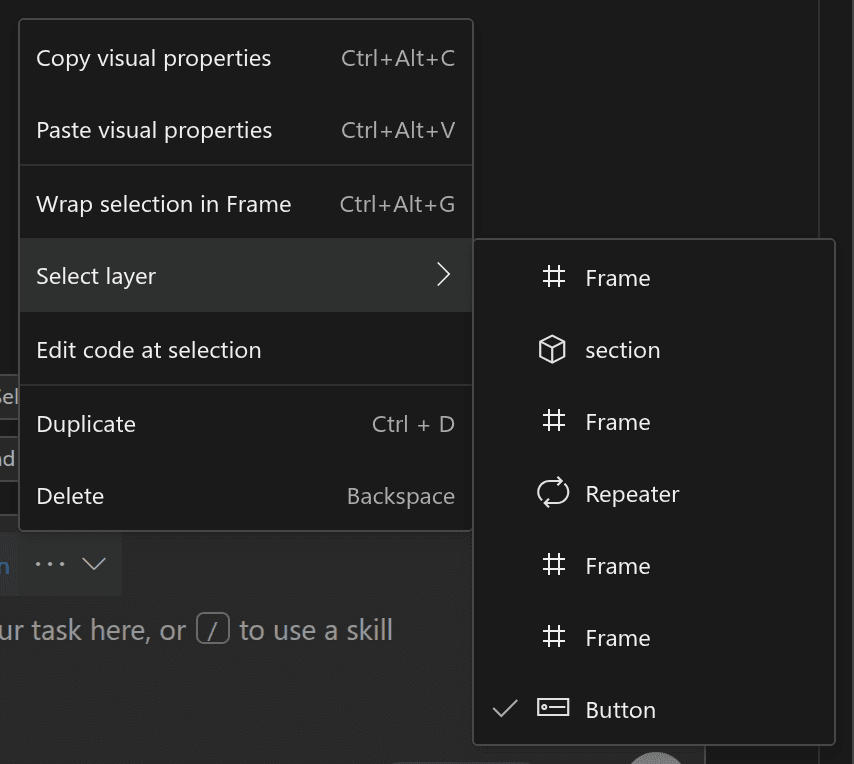
- Right-click any row to open its actions menu (Duplicate, Wrap selection in Frame, Edit code at selection, Delete, and more).
Pick a parent layer without opening the tree
When you only want to step up from a selected element to one of its parent containers, you can reach the ancestor list directly in two places:
- Right-click the element in the preview (or click
...on the@badge in the prompt field) and open Select layer to see every parent from the page root down to your current selection.
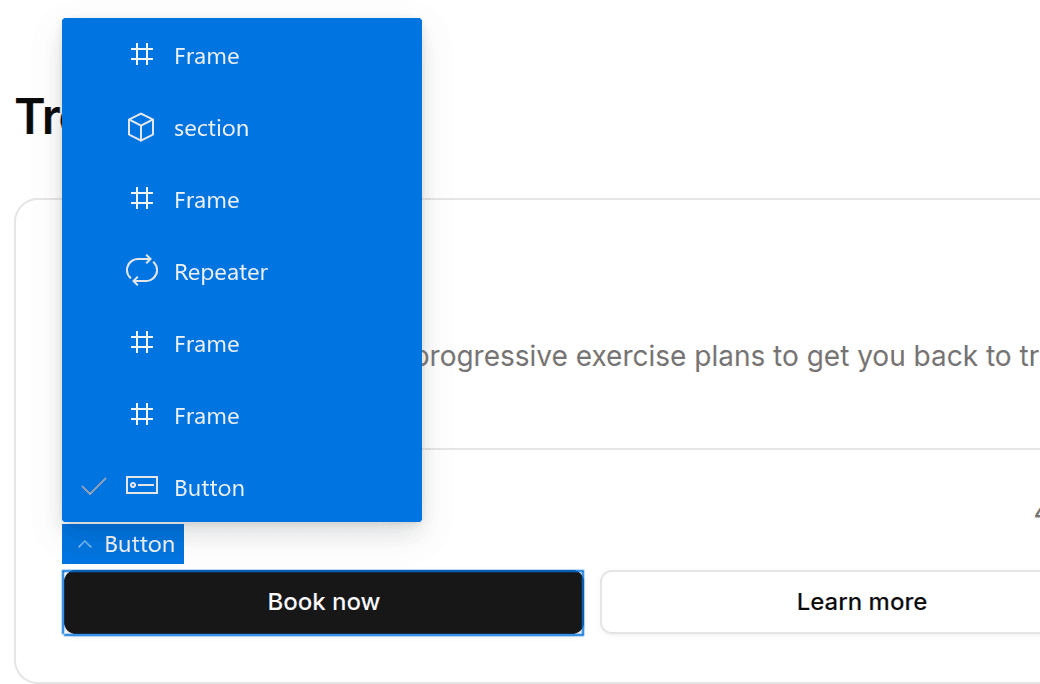
- Click the blue tag badge above a selected element directly in the preview to fold out its parent layers and choose one.
Was this page helpful?